

So,
You recently got into the cloud engineering space, and now you're stacked with many SSH chores. Or maybe you're just the senior engineer on the team - the one who always checks into the server to restart builds after every code deployment 😊.
If the latter is the case with you, please do well to dive a little deeper into DevOps, so you can learn how to set up CI/CD pipelines that will handle deployment automations.
Whether you're a full-fledged cloud engineer, the senior engineer on a product team, or just a person in tech who finds themselves having to initiate remote server connections now and then via SSH, you really want to ask yourself if you actually know enough about SSH.
My Little Back-Story.
I remember back then, how I used to see AWS(EC2) SSH public key authentication strings as some AWS-specific jargon. Those strings were certainly strange to me at first, but I got used to seeing them, and with time, I also got used to accessing remote servers with them.
It's actually very funny now - that I ever once thought that way.
I simply didn't understand SSH.
Just in case you're like me who never really understood SSH back then, the above public key authentication SSH string, is a standard format for all shell interfaces that have SSH built into them - irrespective of the cloud service or server operating system.
With continuous progress in my cloud and DevOps journey, I got to really understand SSH, and in this article, I'll be sharing quite a lot about SSH public-key authentication and helping to broaden your knowledge of how it actually works.
You'll get to learn:
- How SSH(public key auth) connection key-pairs are created and how they are shared between remote connections.
- How SSH connections can be between 2 remote servers - not necessarily between you local computer and one remote server.
- How SSH contributes to making different DevOps and cloud operations possible.
- More.
So What Is SSH In The First Place.
SSH (Secure Shell) is a network protocol that allows secure remote access and communication between two computers over an unsecured network(like the internet).
In simple terms, SSH is a communication system or standard, that gives you the ability to securely connect to a remote computer/server from your computer and current location with the aid of the internet. With this possibility, You're able to gain access to the remote computer, and perform numerous actions on it or with it.
Why SSH is Actually Secure.
-
Encryption: All SSH traffic is encrypted and hence prevents eavesdropping.
-
Authentication: SSH uses passwords, public/private key pairs, or more advanced methods like two-factor authentication.
-
Integrity: SSH ensures that data is not tampered with during transmission.
SSH Authentication Methods(The Options).
In terms of SSH authentication, password authentication and public key authentication are the 2 most popular methods being used.
While they have their differences, both methods are similar in how they operate(as shown in the table below).
The Similarities Between Password And Public-key SSH Auth.
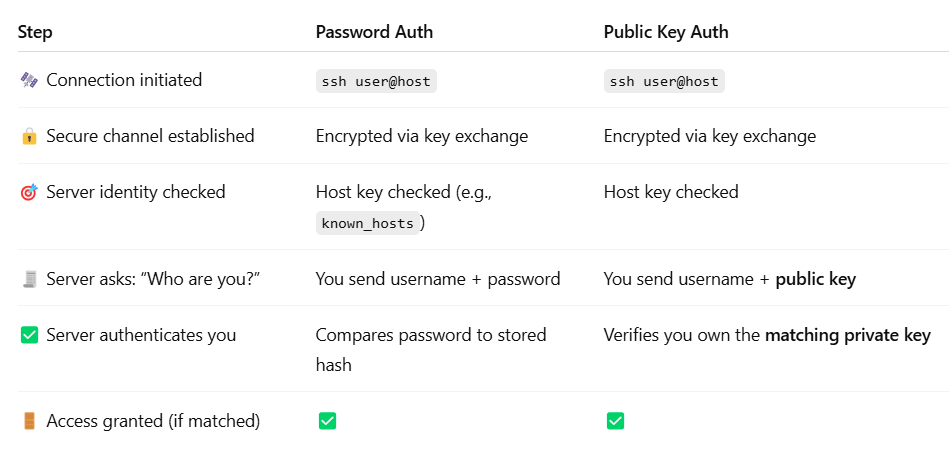 Image: an image showing the similarities between password and public-key SSH auth(https://chatgpt.com).
The process generally follows a similar flow, but it's important to note that public key auth is a much safer option, and is the more widely used method.
Other available SSH authentication options.
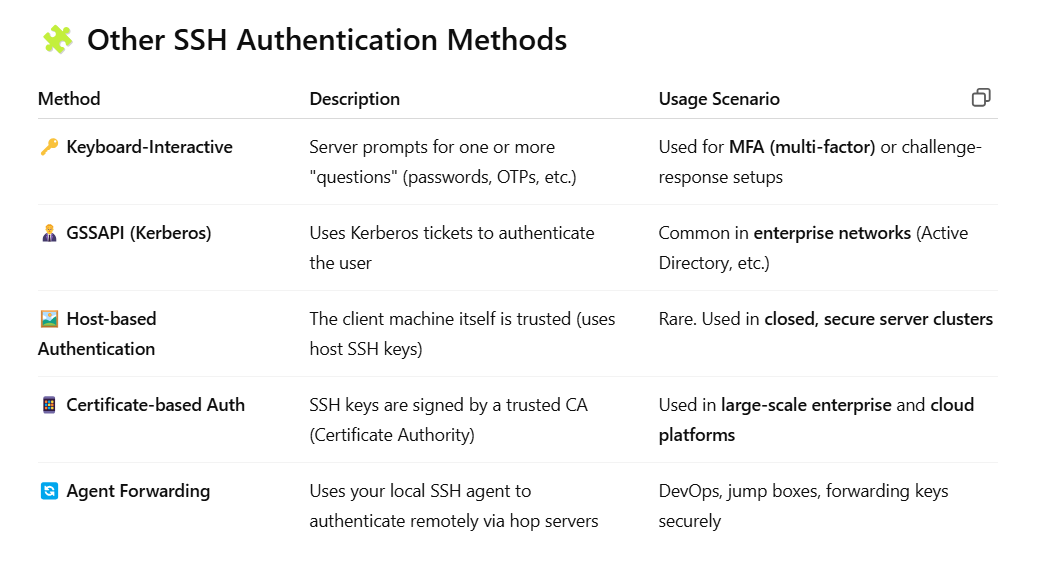 Image: an image showing other SSH authentication methods(https://chatgpt.com).
Difference Between Password And Public Key SSH Authentication Methods.
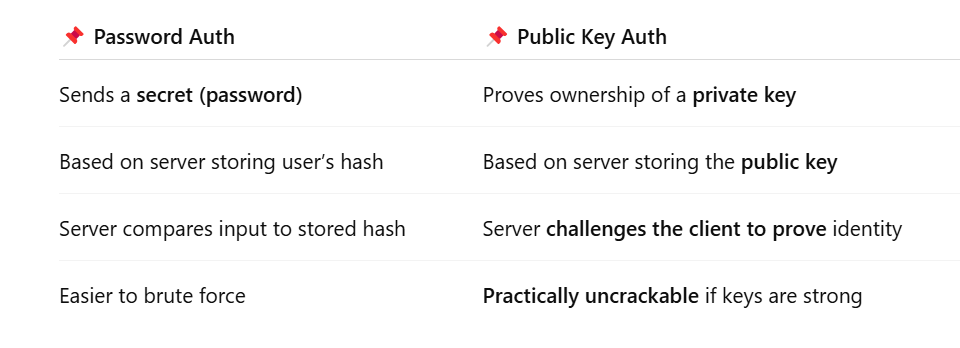 Image: an image showing the difference between password and public key SSH auth methods(https://chatgpt.com).
Advantages Of The Public Key Authentication Method Over The Password Method For SSH.
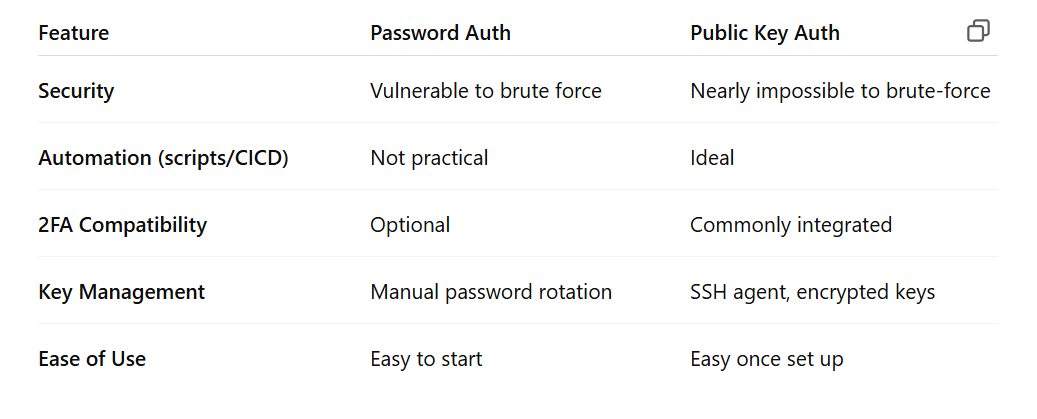 Image: an image showing the advantage of the public key SSH auth method over it's password counterpart(https://chatgpt.com).
The SSH Public Key Authentication Method.
As shared already, the public key authentication method is the most commonly used authentication method for SSH. It is also likely the safest, most reliable, and most flexible - supporting different infra-related task like CI/CD.
To really explain this in much detail, I'll be sharing details of how the public key SSH auth method works.
How The Public Key Authentication Method Works.
Once again, below is the public key SSH string pattern for accessing an AWS EC2 VM from my local machine(computer).
E.g.
Equally as earlier stated, the above snippet pattern is not unique to AWS. It is simply a default/standard SSH public key auth format for all shell interfaces that have SSH built into them - irrespective of the cloud service or server operating system.
Below is a list detailing how the public key SSH auth method works, from key-pair generation to access sharing and final connection.
-
User creates/generates a secure key-pair(the private and public keys) on(or for - see explanation of 'delegated SSH connections' below) the machine-to-connect-from(client).
-
User adds the public key of the machine-to-connect-from(client) into the authorized keys file of the machine-to-connect-to(server).
-
Using the above snippet(public key auth string), add the relevant details(IP and private key file path), then copy and attempt to create a connection on the machine-to-connect-from(client).
Here's what happens: When an SSH connection is attempted using public key authentication, the client (machine you’re connecting from) uses its private key to respond to a challenge from the server (machine you're connecting to).
The server checks the client's public key(which must have been pre-added to it's own(the server's) ~/.ssh/authorized_keys file) and uses it to verify the response.
If the response validates correctly, it means the client holds the matching private key, so the server grants access. Otherwise, the connection is rejected.
Important Notes:
The private key stays only on the client machine — it must be kept secret. The public key is stored on the server — it's safe to share publicly.
Summary:
- Client has private key → signs a challenge.
- Server has public key of the client → verifies the signed challenge.
- ✅ If it matches → Access granted.
- ❌ If it doesn’t → Access denied.
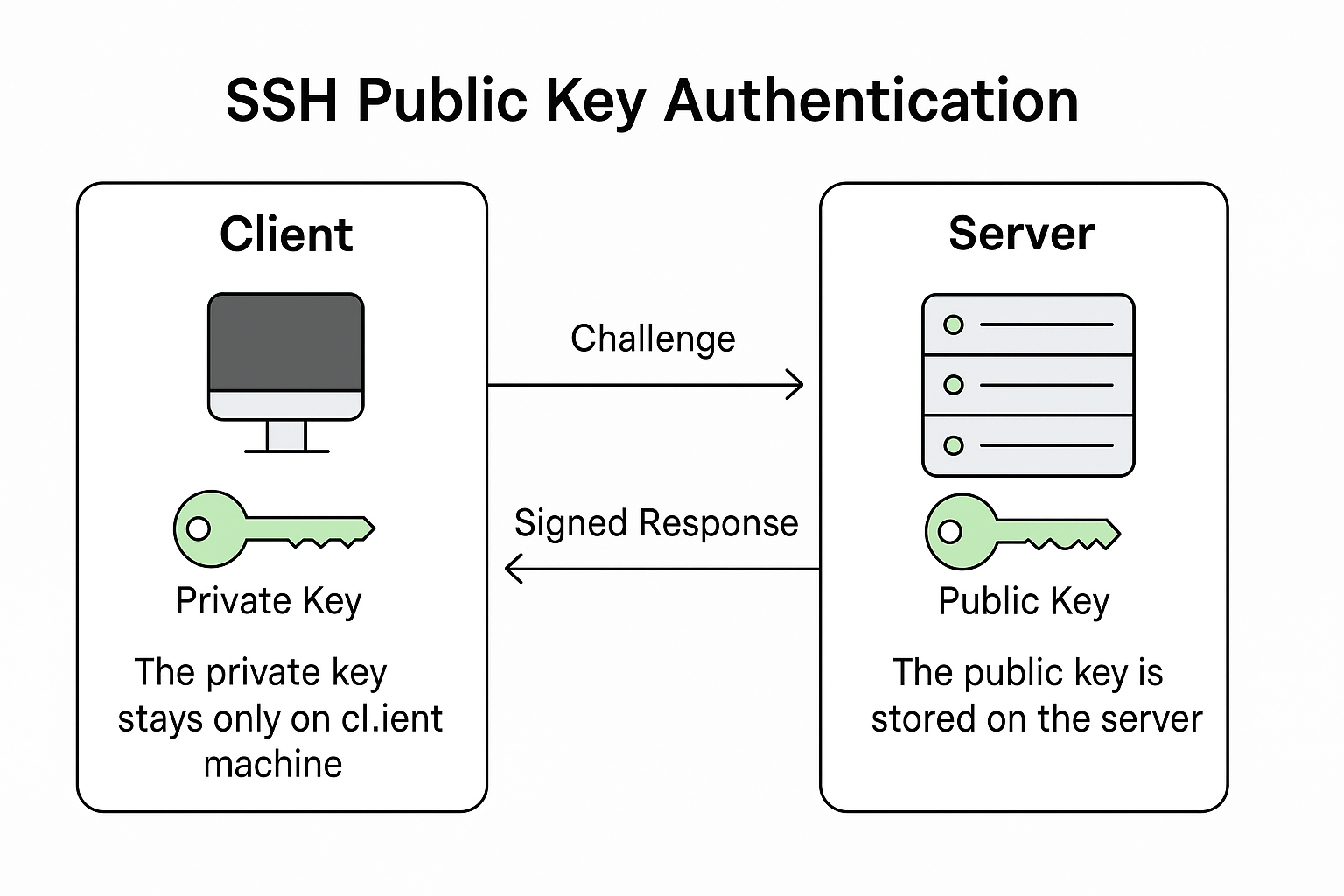 Image: a diagram showing the public key SSH authentication process(https://chatgpt.com).
Delegated SSH Connections.
From the above, you might already be wondering - "...but when I'm connecting to an AWS VM from my local machine, I never actually created the key-pair on my local machine".
That's a very valid concern which brings in the topic of delegated SSH connections.
SSH public key authentication is simple and straightforward. All you need is a pair of keys. The key pair does not have to be generated on the machine you are connecting from (the client). What matters is that the client machine holds the private key, which is used to authenticate against the corresponding public key already stored on the machine you are connecting to (the server). It does not matter whether the key pair was originally generated on the client machine or elsewhere.
This simple concept is what makes it possible for two remote machines(virtual machines) to connect with each other. One very practical example, is how you're able to connect a remote Jenkins master/controller with a remote project-host server, and programmatically perform actions on the project-host server without any direct human actions. You simply copy or transfer the keys from wherever they were originally generated(whether directly on the Jenkins server or not), add the public key to 'authorized keys' on the machine-to-connect-to, then add the private key to Jenkins - Thereby permitting(DELEGATING) Jenkins to authenticate VIA SSH and perform actions on your behalf.
How The Key Pair Generation Actually Works - A Practical(Server-Client) Connection Demonstration.
This section clearly details the manual key-pair generation process. This knowledge, is a highly valuable asset for cloud and DevOps engineers. All the below commands are standard defaults for any shell environment that supports SSH - irrespective of the cloud service provider, and the operating system of the virtual machine.
- Generate the key pair on the client.
E.g.
- Access and copy the public key.
Or
Similarly, the private key should be here. Copy if you're delegating the SSH connection to another machine that will serve as the client.
Or
- Head to the remote machine that you'll be connecting to, and run this - to edit with nano.
-
Add the newly copied(public) key on a new line.
-
Save and exit(CTRL + o, then ENTER, then CTRL + x).
-
Return to the host/client machine that now has the private key, and run:
- Just like that, you should find yourself inside the remote shell of the other VM.
Explaining The Default Key-pair Filenames.
By default, when you run:
and accept all the defaults (i.e., press Enter for all prompts), it creates:
- ~/.ssh/id_rsa – private key
- ~/.ssh/id_rsa.pub – public key
id_rsa is the default key-pair filename used by OpenSSH when generating SSH key pairs.
Here’s a breakdown:
- id_rsa: Your private SSH key.
- id_rsa.pub: The corresponding public SSH key.
Where are they located?
Of course, these are stored in the ~/.ssh/ directory in your home folder.
Access them:
"id_rsa" is simply a default.
By default, SSH clients like ssh, scp, git, and Jenkins SSH plugins will automatically look for ~/.ssh/id_rsa when connecting.
E.g.
Unless explicitly told to use another key (via -i flag or config file).
E.g.
Important Recap:
-
The private key (id_rsa or equivalent) must be kept secret - only add to a remote(third party) client when you want to delegate access to it.
-
The public key (id_rsa.pub or equivalent) can be shared, for example, by appending it to ~/.ssh/authorized_keys on a remote server.
Conclusion.
That much about it for this article. Thanks for reading thus far. I do hope you got enough value.
The need to understand SSH and how it works, is very important for software engineers of all categories. Especially those specializing in infra-related roles like cloud engineering and DevOps.
I trust this piece has indeed enhanced your knowledge of SSH and some of it's underlying concepts.
If you loved this post and would want to send an appreciation, simply use this link to buy me a cup of coffee 🤓.
Thanks for reading.
Cheers!!!