

This article is a highly professional guide, that details a standard and complete(containerized) deployment of a Python(Django - Django Ninja) API server on AWS EC2.
What You'll Be Learning.
In this tutorial, you'll learn:
- About managing servers on AWS EC2.
- How to perform a standard Docker installation, and professionally handle containerized application deployments on virtual machines - using Systemd.
- About Nginx: how to deploy and use it as a reverse proxy, and as a tool for generating free SSL certificates for your domains.
- About Route 53 - AWS' DNS management service.
- About "Systemd" - a Linux OS system and service manager. A very powerful tool that if well understood, helps you stand-out as a cloud/DevOps engineer.
- More...
The Project To Be Deployed.
The project to be deployed, is open and free to access - visit this link to see and explore it.
The above project that we'll be deploying, was bootstrapped with the Python Django(Django Ninja) template repository below. Explore it, and feel free to use on you new Python Django(Django Ninja) projects. Contributions, stars, and feedbacks are welcomed.
N.B: This guide assumes, that you already created an EC2 instance, and is ready for the API server deployment. In case you haven't and need a guide to go about that, explore this other article, in which I shared how to create an AWS EC2 instance from scratch. Awesome thing, the EC2 instance I created in that post, is the one I'll be performing this project server deployment on.
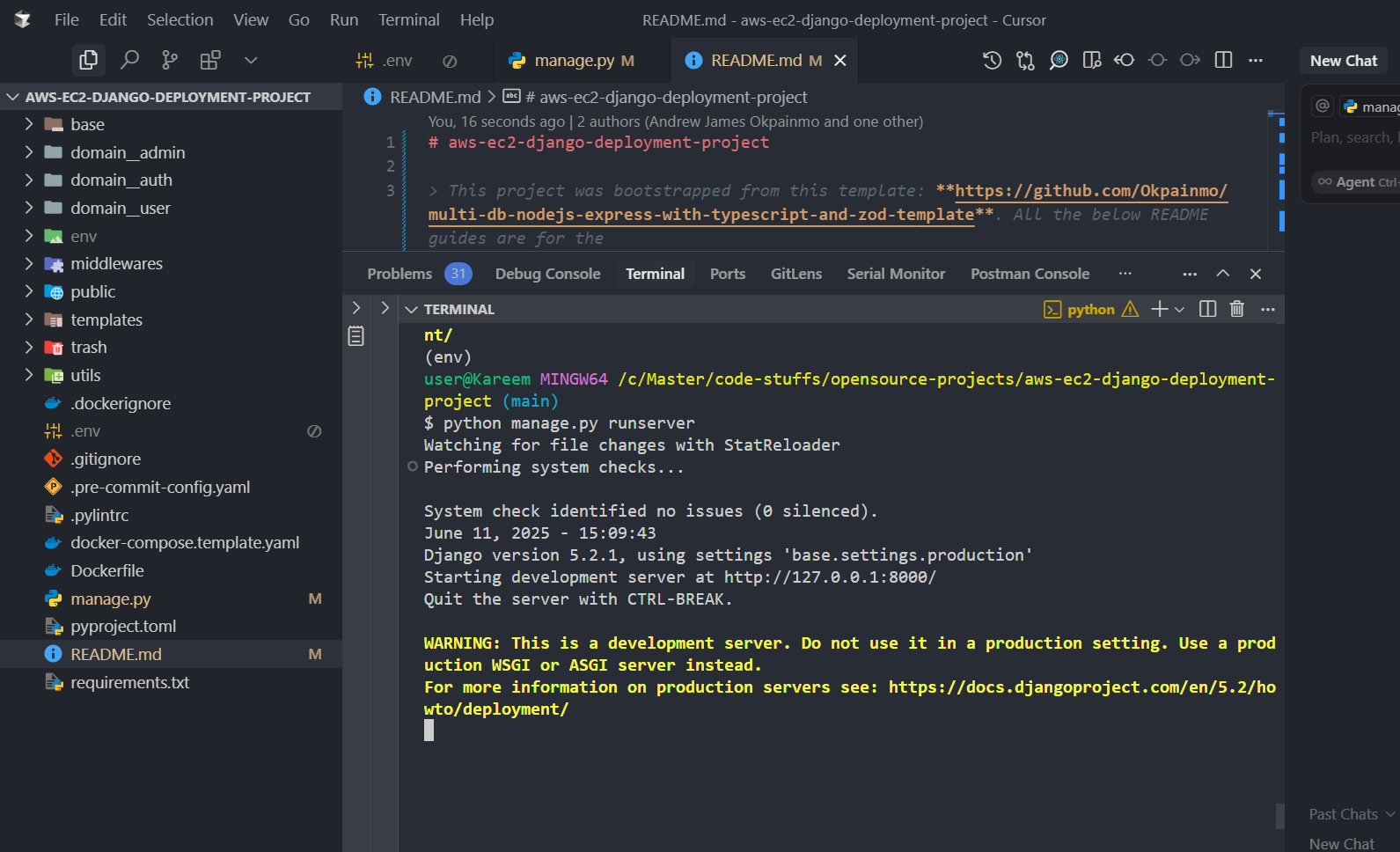
The below screenshot is a terminal instance that shows how things should look in our server/virtual machine logs after a successful deployment.
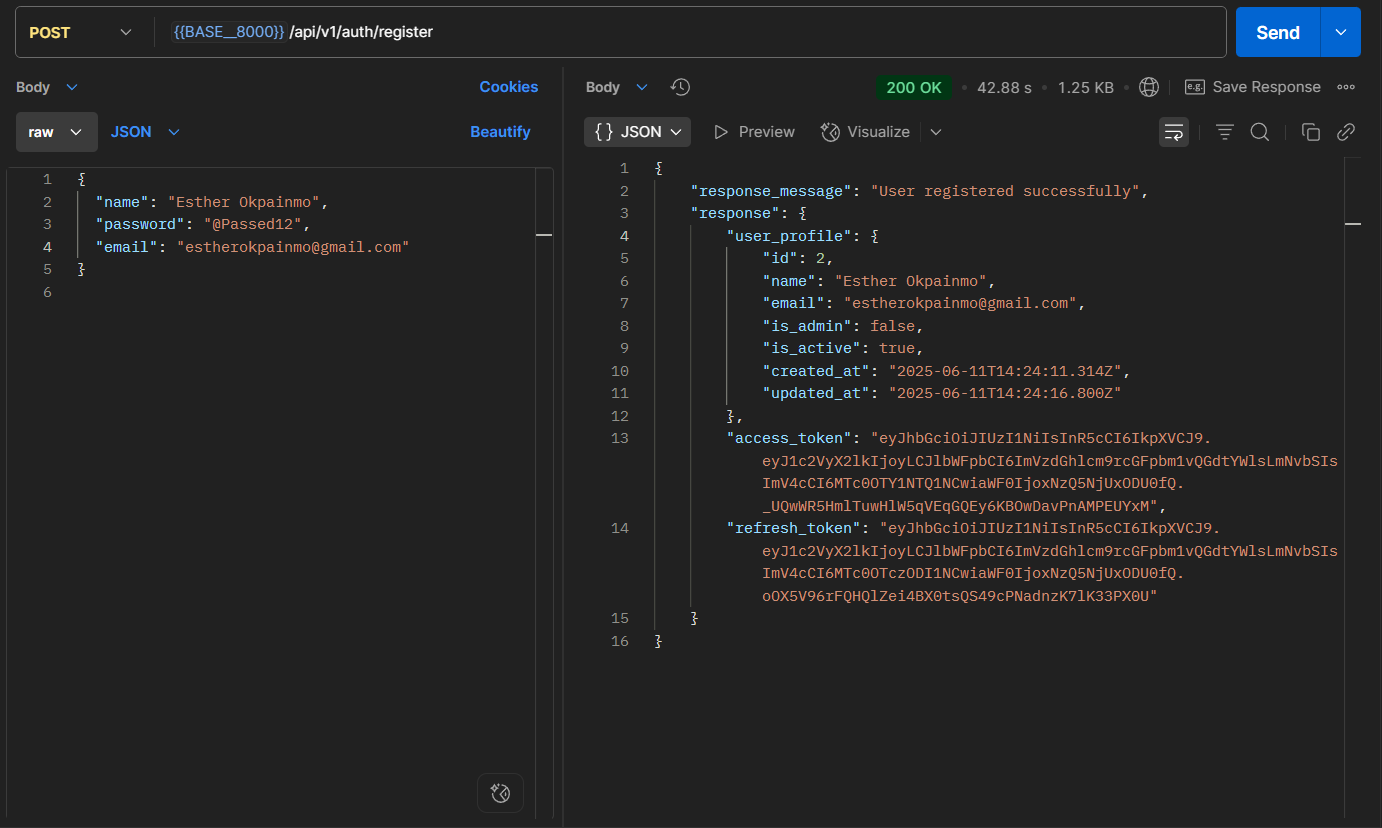
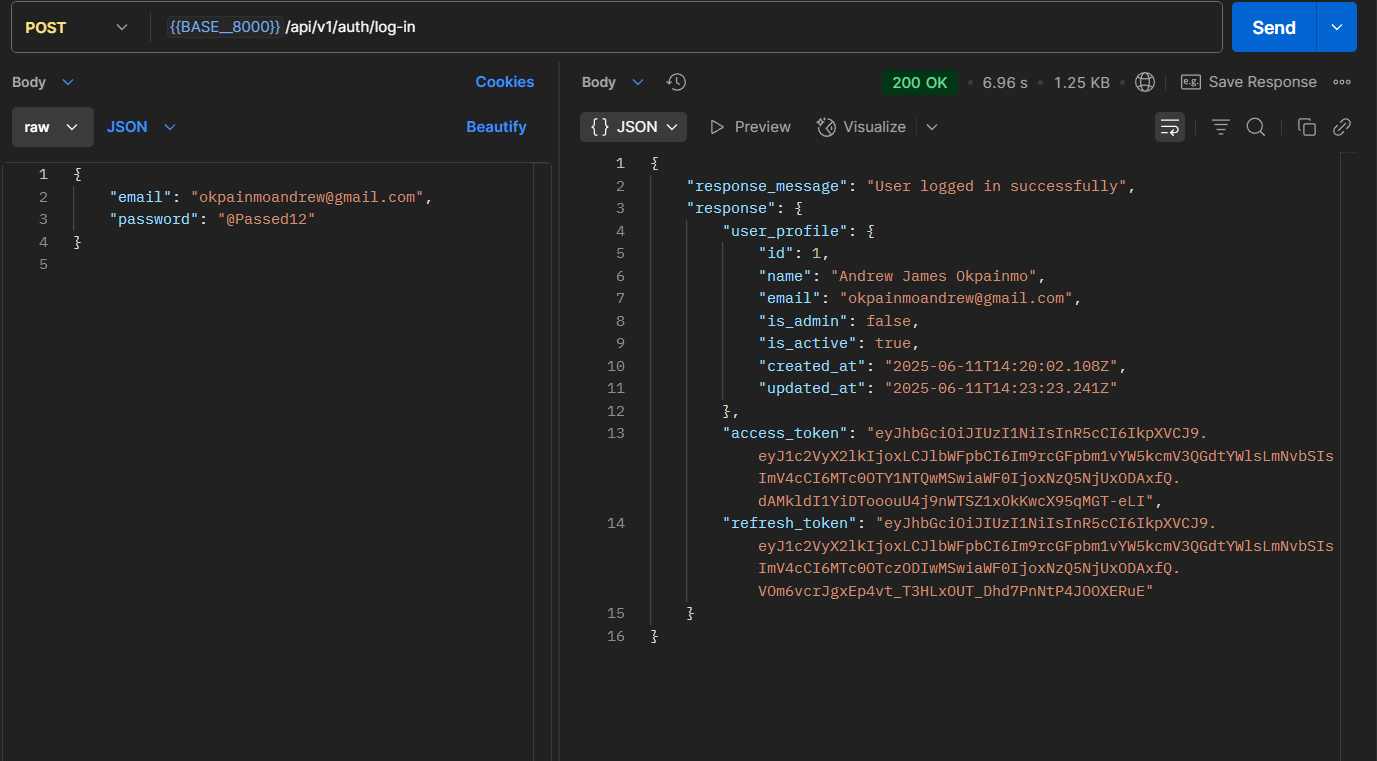
The two screenshots below, reveal Postman interfaces with two requests that were made on the local deployment of the API on my machine. Once done with our deployment, we'll update the request URLs, and try out with our live API URL.
Let's Get A Todo.
- Access The EC2 instance via SSH and perform system updates/upgrades.
- Clone project repo, prepare project's Python environment, and make all project dependency installations(see project repo README file for help).
- Create a temporary .env file, and add all environmental variables(not very secure, we will implement in a more secure way on step 14).
- Run the API server.
- Open all the necessary virtual machine ports(port "80" and port "443").
- Install Nginx, set up as reverse proxy, and access the API server.
- Get a free SSL certificate for project domain(sub-domain).
- Test the API server on the now SSL certified domain/sub-domain.
- Install Docker.
- Explain the available Docker deployment options(step 2, 3, 4, and 8 were not really necessary).
- Prepare the project's Docker image(build image directly on the VM using the available Dockerfile).
- Manually run the API server with Docker.
- Explaining what happens with the current setup if something goes wrong.
- Create a system service to run the project/API server - along with a standard environmental variables file. Follow-up, and delete the previously created environmental variables file.
- Finish deployment, and test API server on the live URL - inside Postman.
Now, let's dive in.
1. Access The EC2 instance via SSH and perform system updates/upgrades.
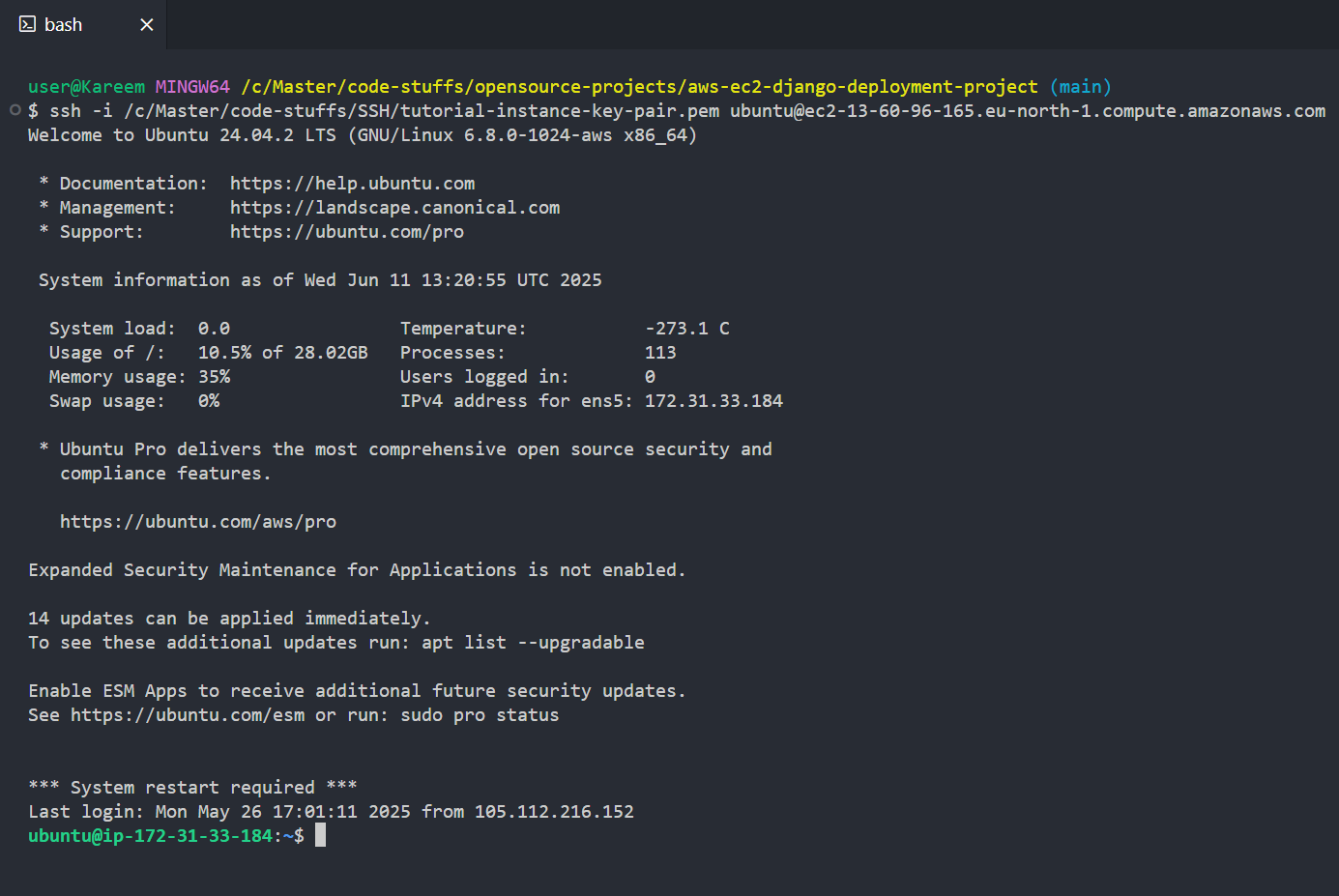
- Connect to the instance using your public key auth string. Mine would be as below.
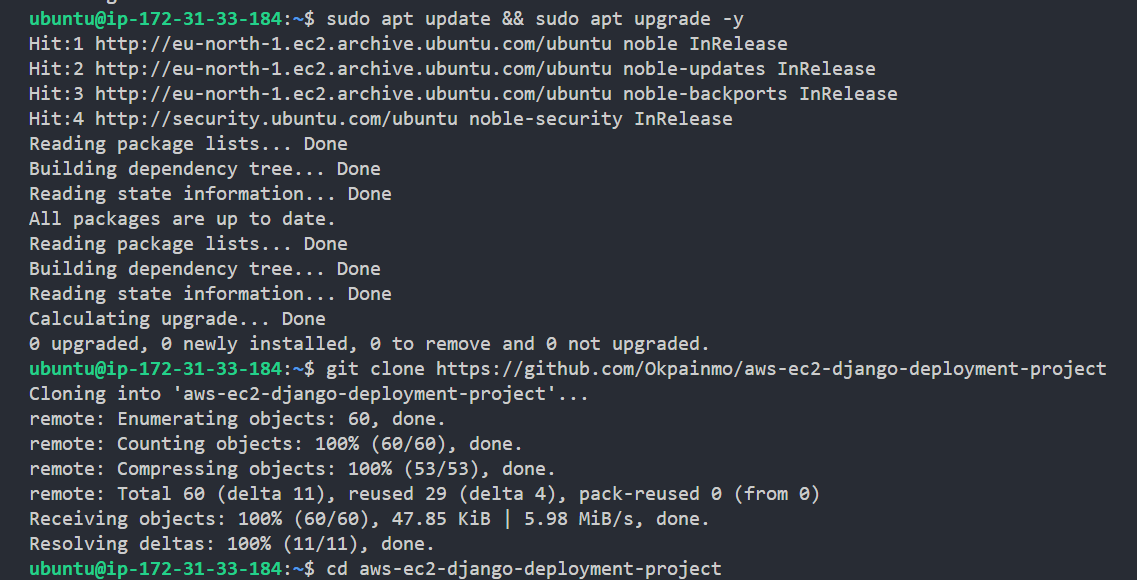
- Perform necessary system update/upgrades.
2. Clone project repo, prepare project's Python environment, and make all project dependency installations.
- Clone project repo.
- Navigate to project directory.
- Prepare project's Python environment.
P.S: The AWS Ubuntu "24.04 LTS..." server I'm using, comes with Python3 installed by default.
First install python3.12-venv.
Then.
- Activate project's Python environment.
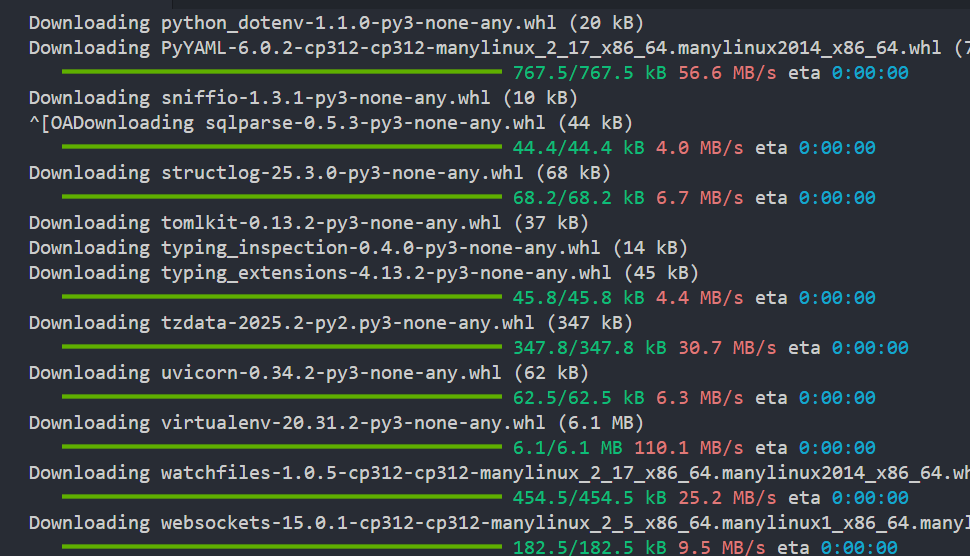
- Install project's dependencies.
First install python3-pip.
Then.
3. Create a temporary .env, and add all environmental variables(not very secure, we will implement in a more secure way on step 14).
- Create a temporary .env file.
- On running the ls command, you won't find the .env file that was just created, because it's actually hidden. Run the below command, and you'll see that it was actually created.

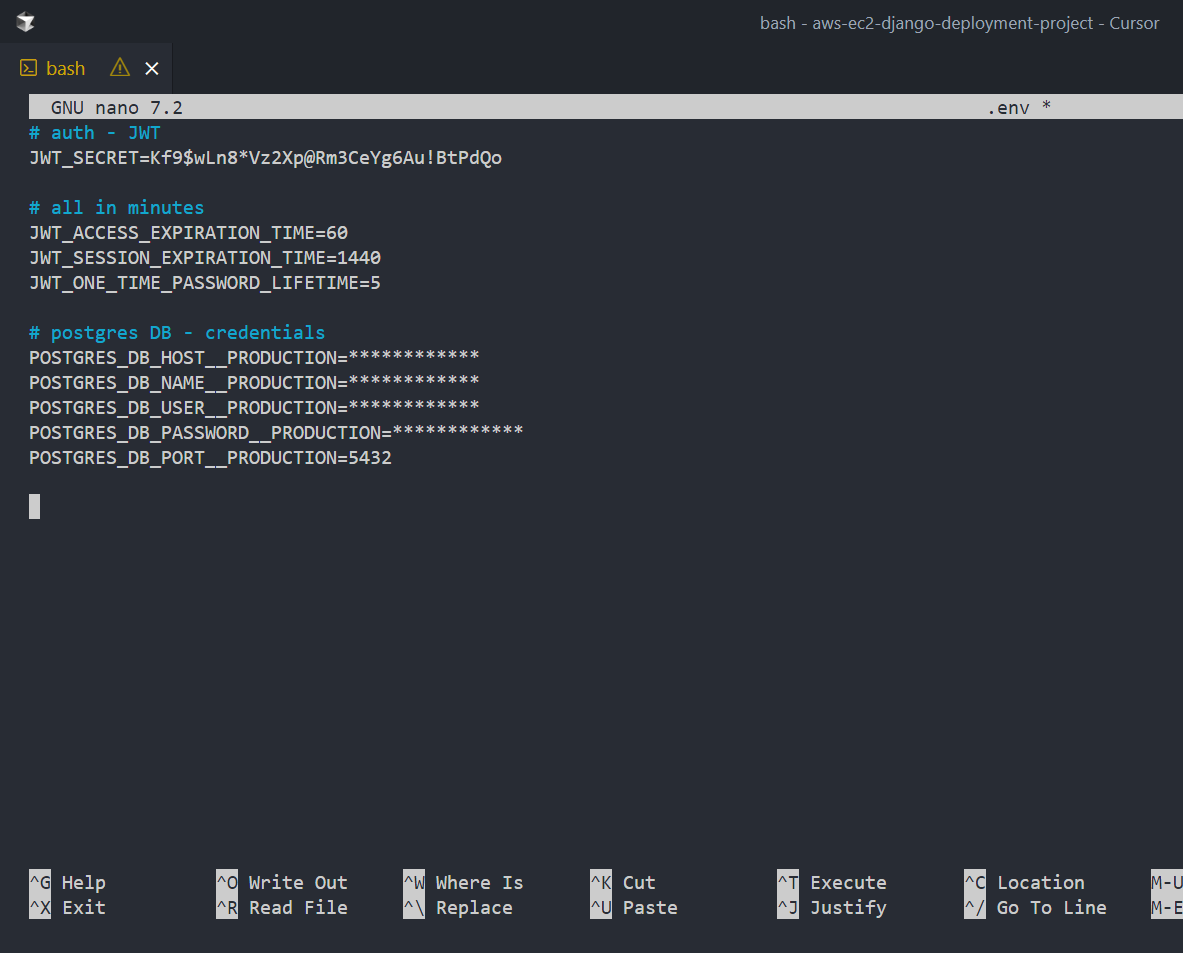
- Open the .env file with the Nano CLI editor, clear the previous insertion, and add the real environmental variables.
In my case, it is as in the below screenshot.
- Save Nano and exit - CTRL + o then press Enter then CTRL + x
4. Run the API server.
Before you run the project server, always ensure that you're in the project's root directory, and that the virtual environment is activated.
Now start the API server. Everything should work fine - with the database successfully connected.
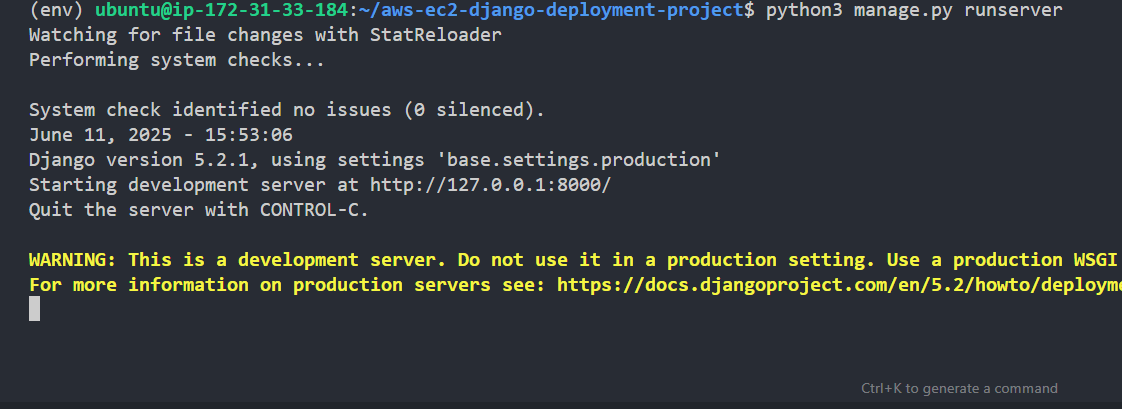
Note that this is just a temporary process. As expected, we're to handle the project deployment with Docker. This process is simply to ensure that everything(server setup, dependency installation, and all) is working well to this point.
We will also be switching from Django's built-in development server, to a more a production-grade setup with guincorn and uvicorn.
5. Open all the necessary virtual machine ports(port "80" and port "443").
With the current set up, our API server is already running on the VM port '8000'. But since the port is not open, we still won't be able to reach the API server on any address. We actually don't need to do that in this tutorial by the way. We will be implementing reverse proxying with Nginx.
In case you want a more beginner-friendly guide that provides much detail - explaining the dynamics involved in opening and using custom VM ports, feel free to read this previous article. Even though that article was a NodeJs/Express project deployment, it'll certainly be very helpful, as a result of it's more in-depth and beginner-friendly approach.
While we won't be opening the 8000 port to access the API directly, we'll need to open port 80(for HTTP requests) and port 443(for HTTPS requests).
- Proceed to your VM dashboard on EC2.
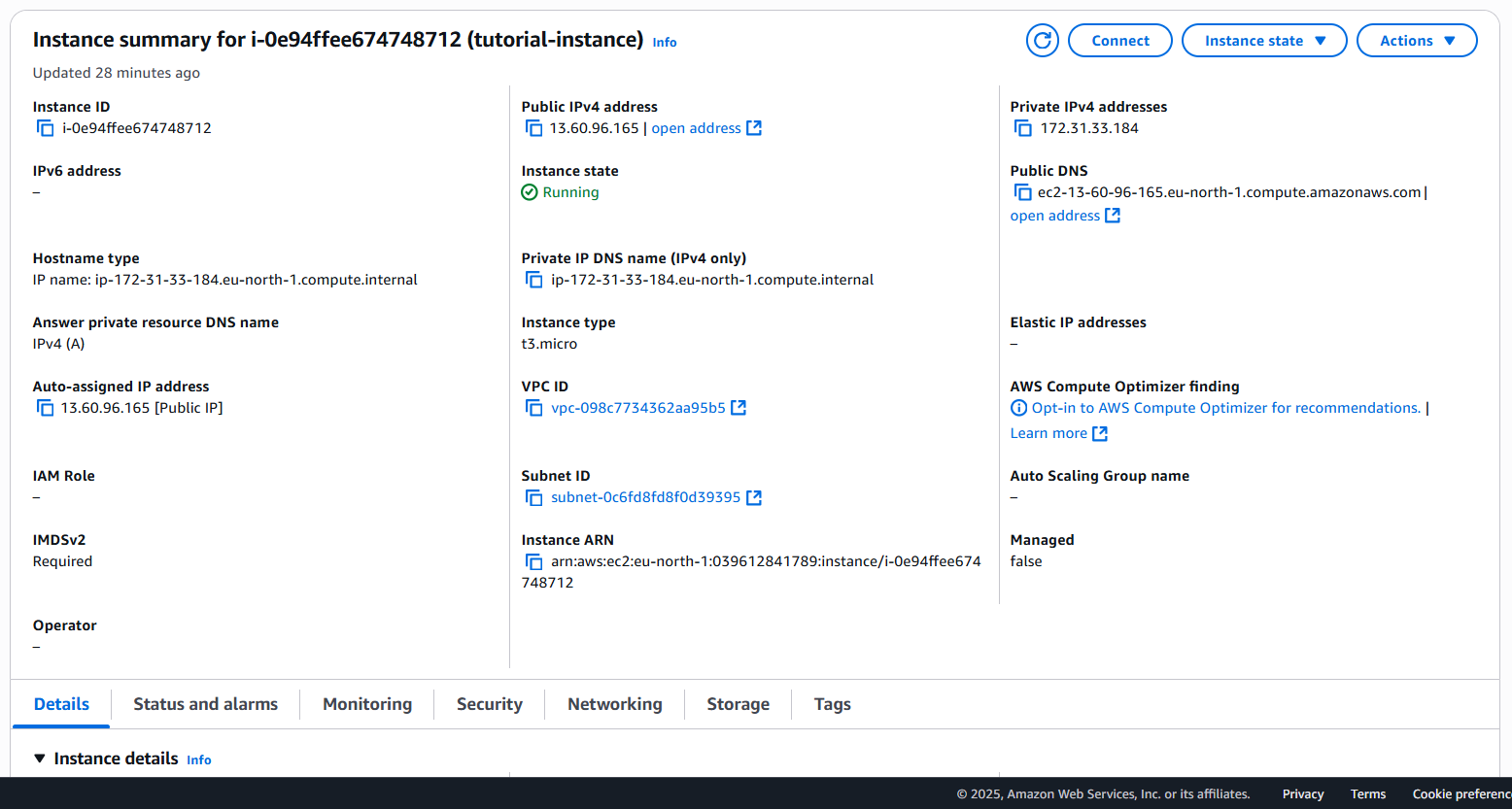
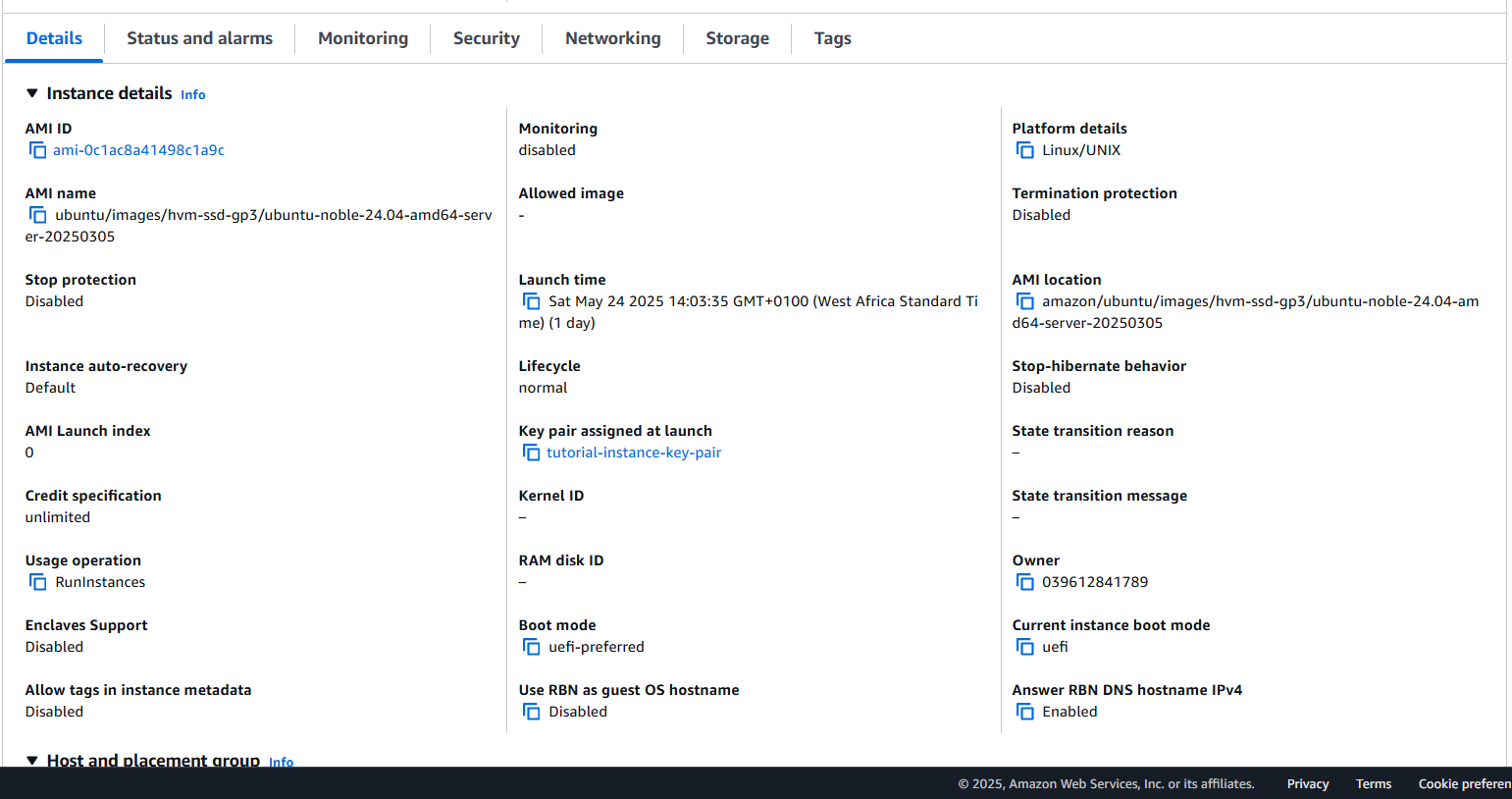
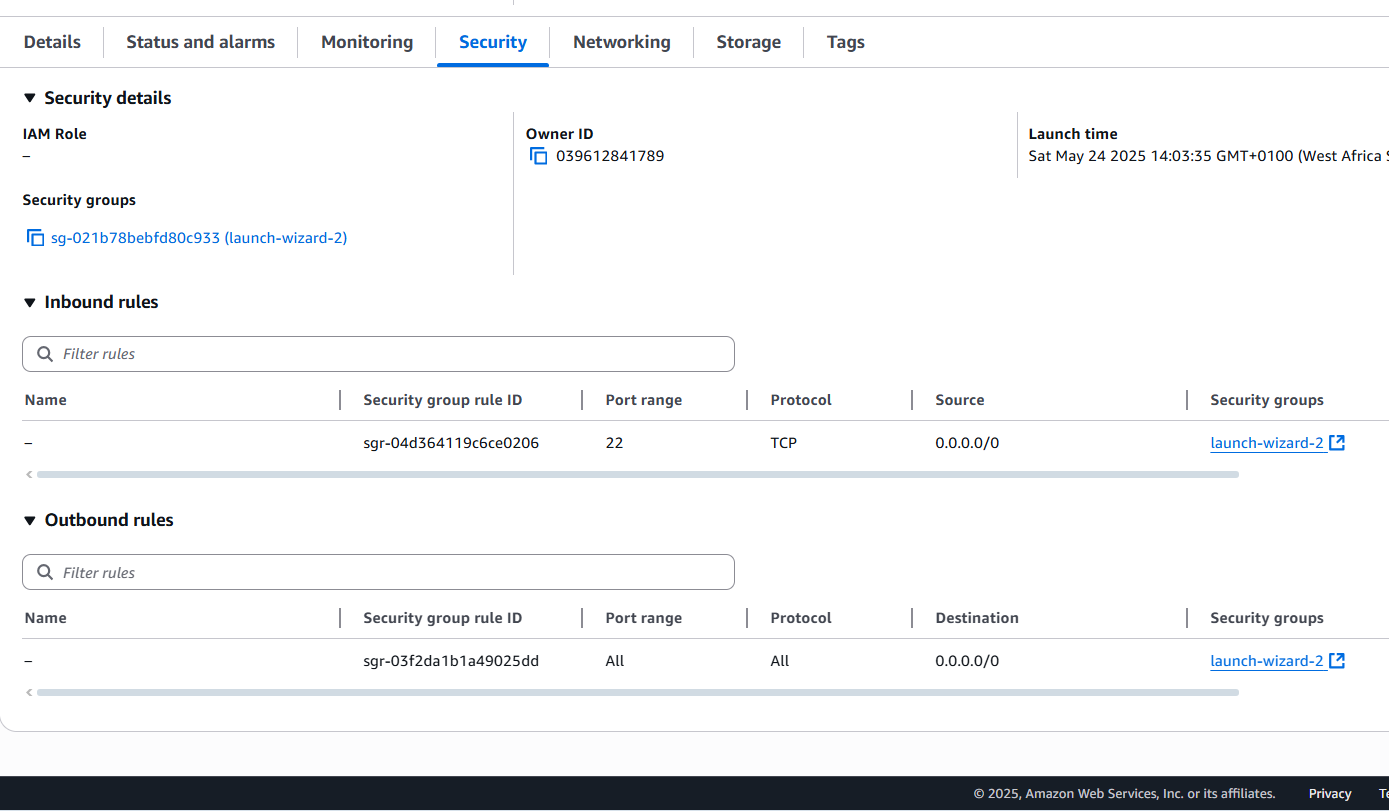
- Scroll to the bottom of your instance page, and click on security from the menu.
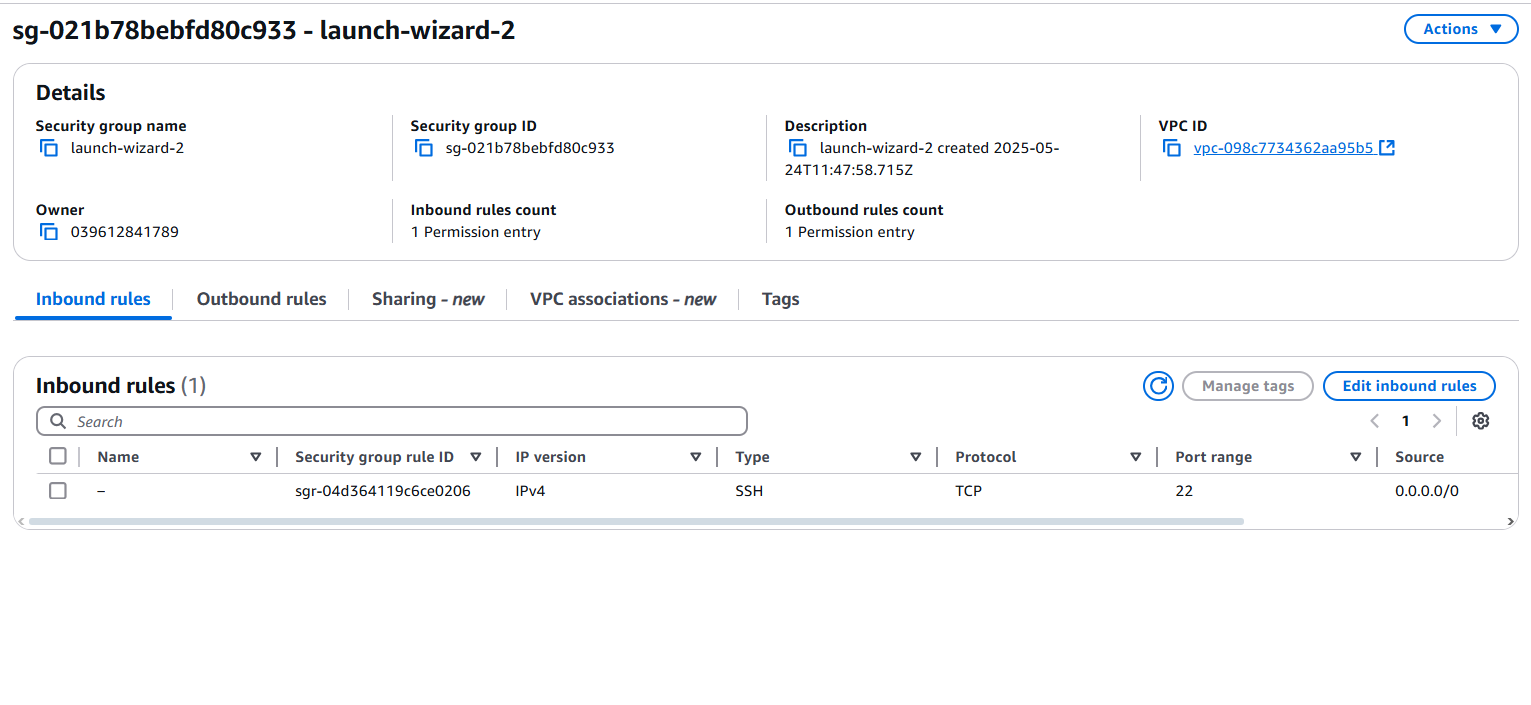
Locate the Security groups link ("sg-021b78bebfd80c933 (launch-wizard-2)" in my case) and click on it.
On the Inbound rules section, click on the "Edit inbound rules" button that is towards the right side of the screen.
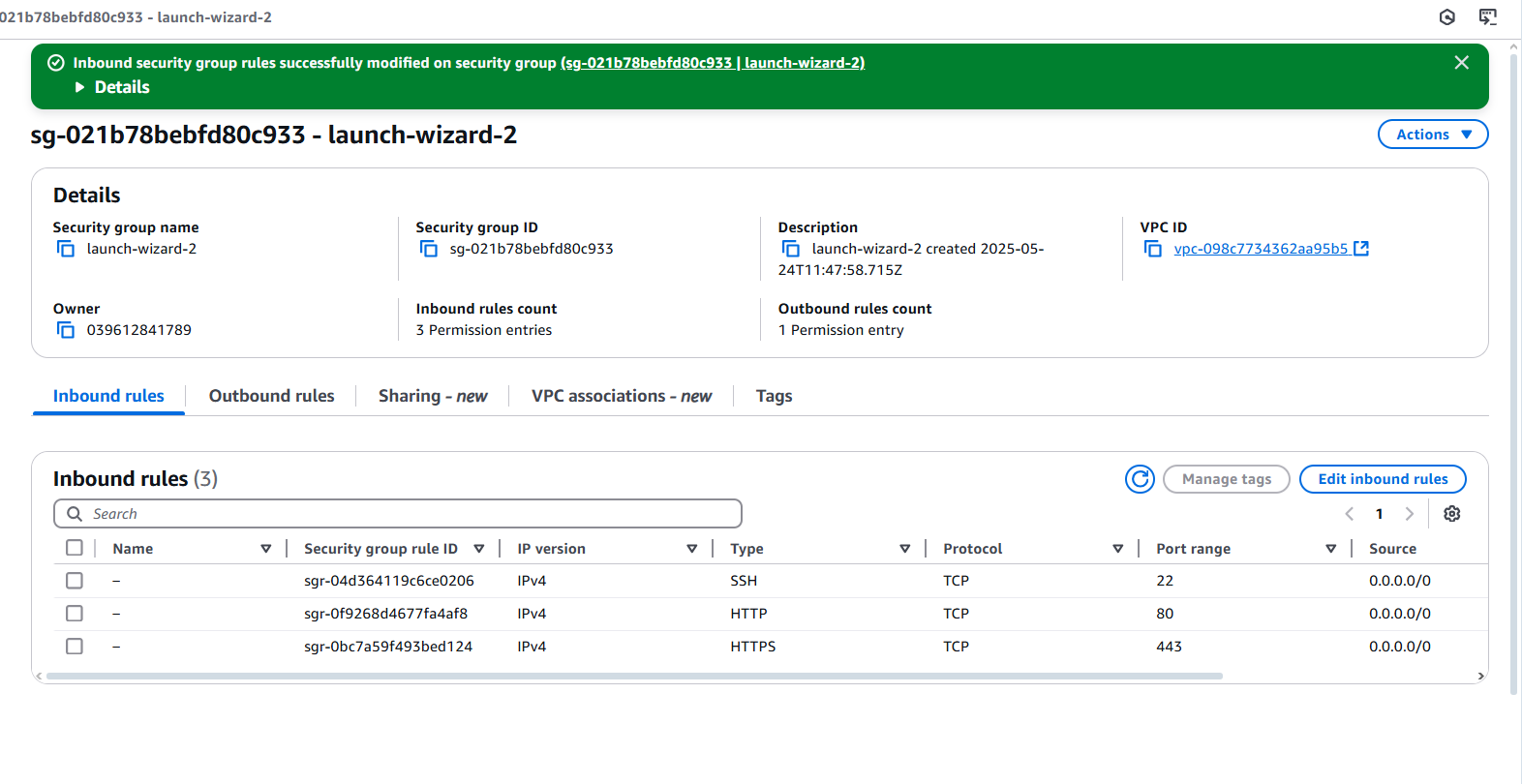
Click on the "Add rule" button, and update to expose the VM ports 80 and 443.
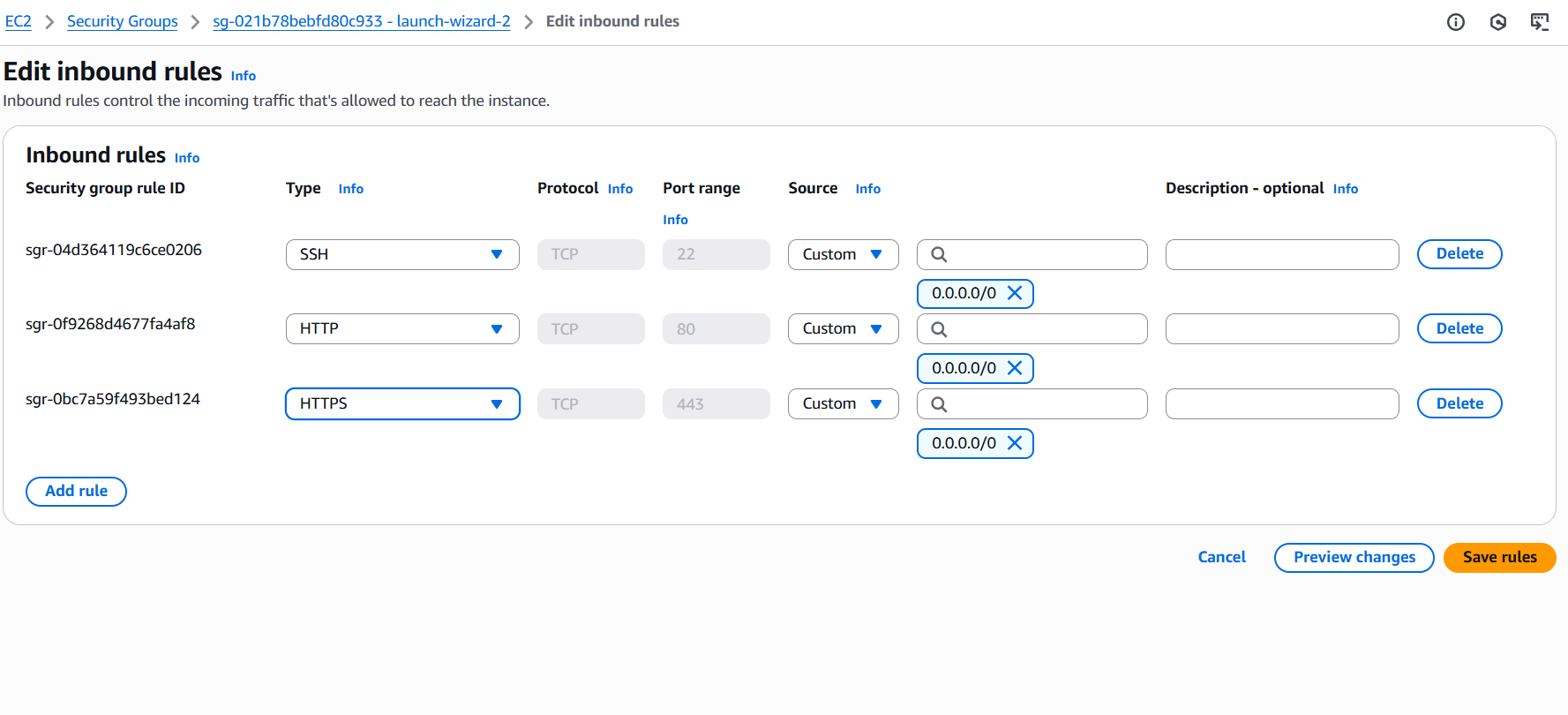
- Type: HTTP
- Port Range: 80(will be automatically selected)
- Source: Anywhere-IPV4
Then
- Type: HTTPS
- Port Range: 443(will be automatically selected)
- Source: Anywhere-IPV4
6. Install Nginx, set up as reverse proxy, and access the API server.
Now, we'll install Nginx, which will help us access the VM port 8000 without us needing to expose it. This way, we'll be able to keep our VM a lot more secure.
Nginx (pronounced "engine-x") is a high-performance, lightweight web server and reverse proxy used to serve web content, handle load balancing, manage SSL, and route traffic efficiently.
Nginx use-cases:
-
As a web server – Serves static content like HTML, CSS, images, JS.
-
As a reverse proxy – Forwards client requests to backend servers (e.g., Node.js, Python).
-
As a load balancer – Distributes traffic across multiple servers for better performance and reliability.
-
For SSL termination – Handles HTTPS encryption before passing traffic to your app.
-
Caching – Caches responses to reduce load on backend services.
When we install Nginx on our server it sits in front of all direct http connections to our server. With that, we're able to re-route traffic internally with it - thereby having it serve the function of a "reverse-proxy". In our case, that means we'd then be able to redirect traffic to our VM port 8000 without needing to expose it directly.
- Terminate the API server if it is still running - CTRL + c.
Simply re-connect your instance in case you see a client_loop: send disconnect: Connection reset by peer error at any point. That simply means your SSH connection was lost.
- Install Nginx.
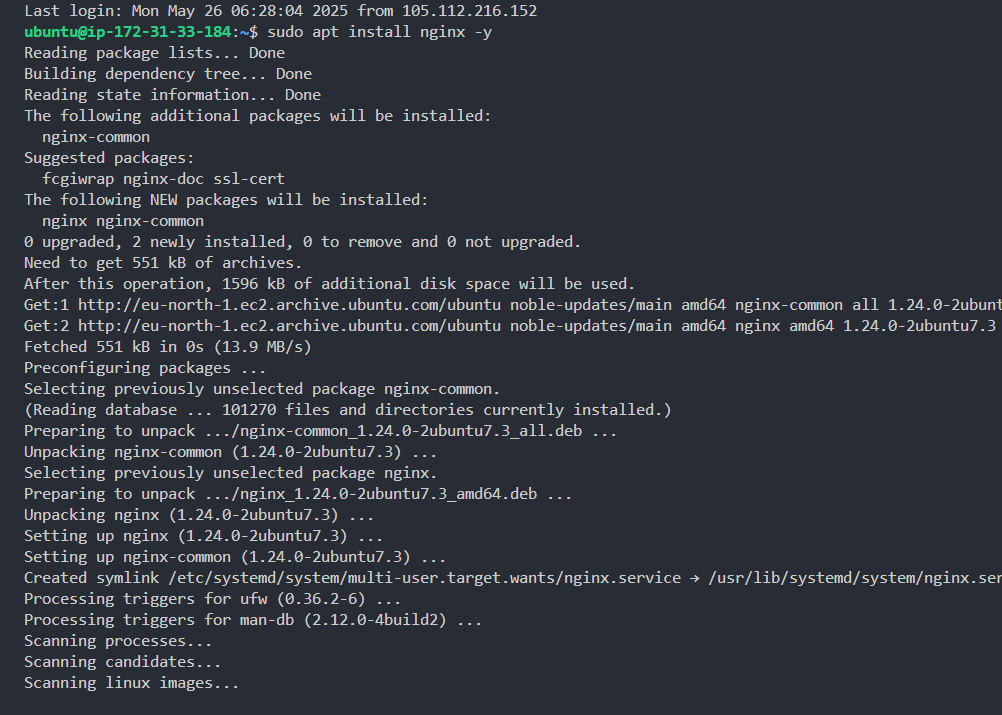
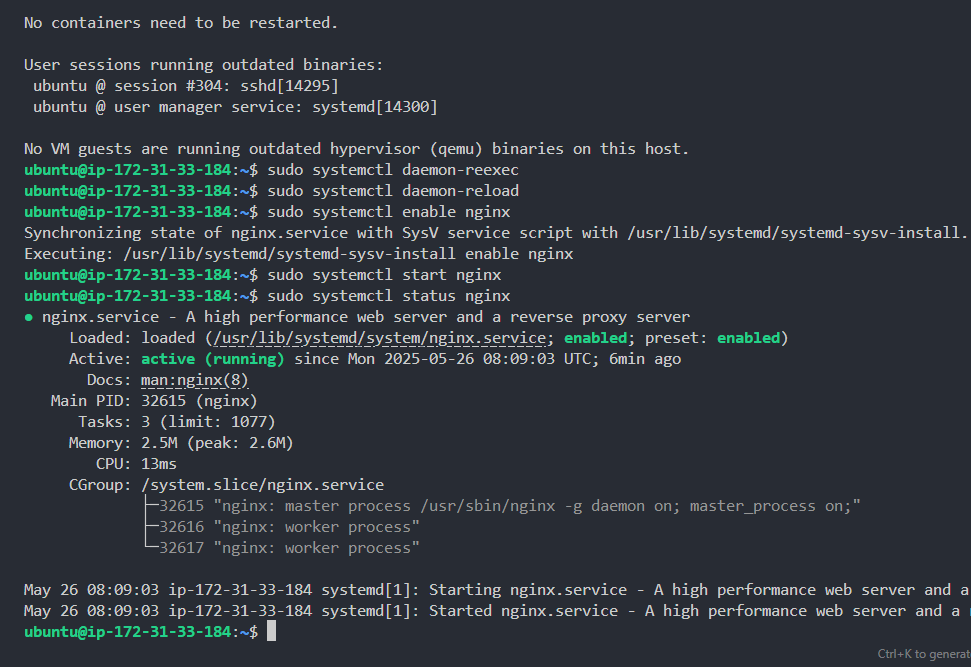
- Refresh/Reload the system service manager - run the below commands.
then
- Enable and start the Nginx service.
then
- Now view the status of the Nginx system service.
As can be seen below, Nginx is running perfectly.
Now visit your VM address directly without the port(http://vm-ip-address). In my case, that will be: http://13.60.96.165.
You can see that Nginx is now sitting in front and intercepting all http connections.
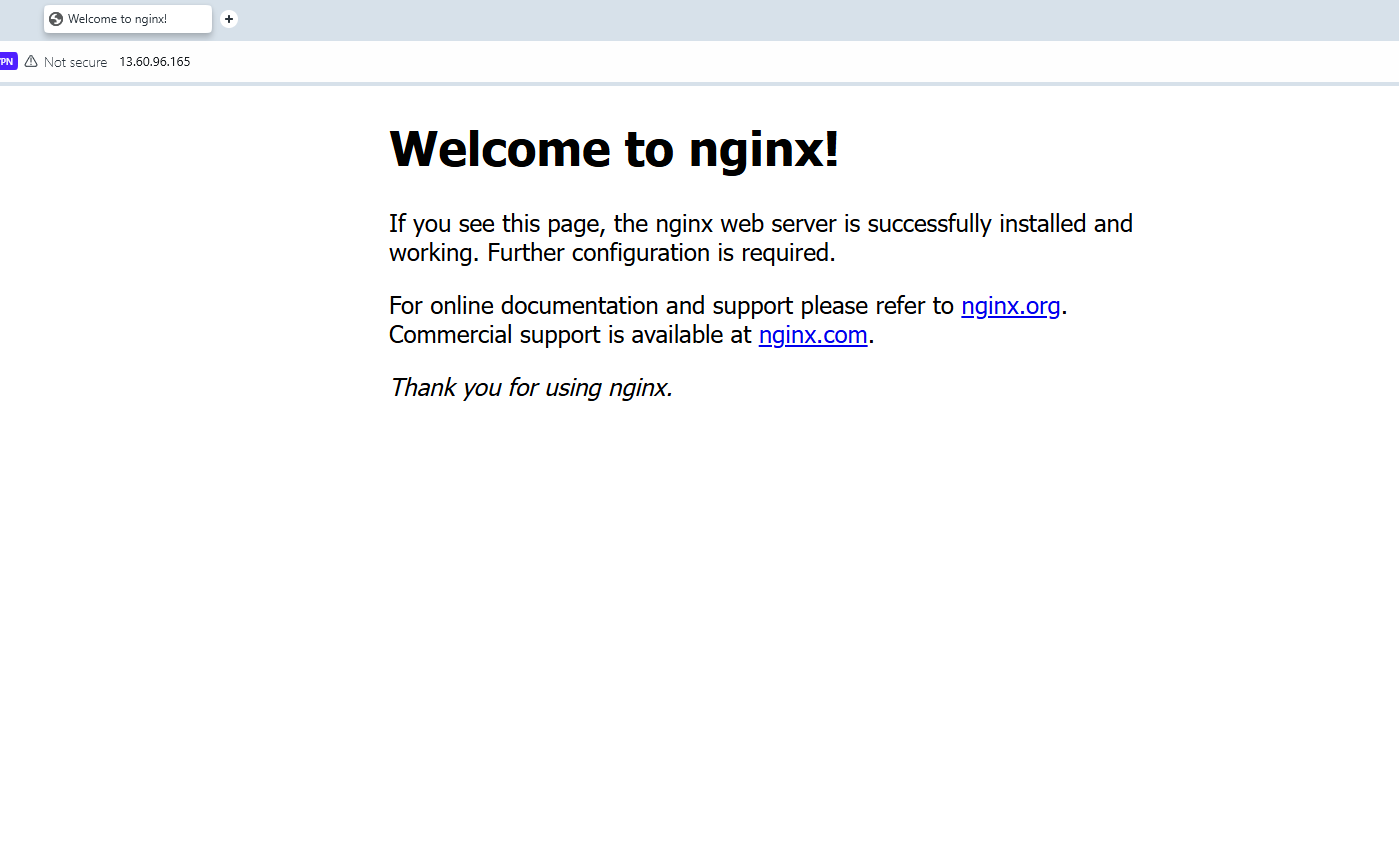
Now that we have Nginx set up, let's configure it to handle routing to our port 8000 internally.
- Open the Nginx config file using the Nano CLI editor.
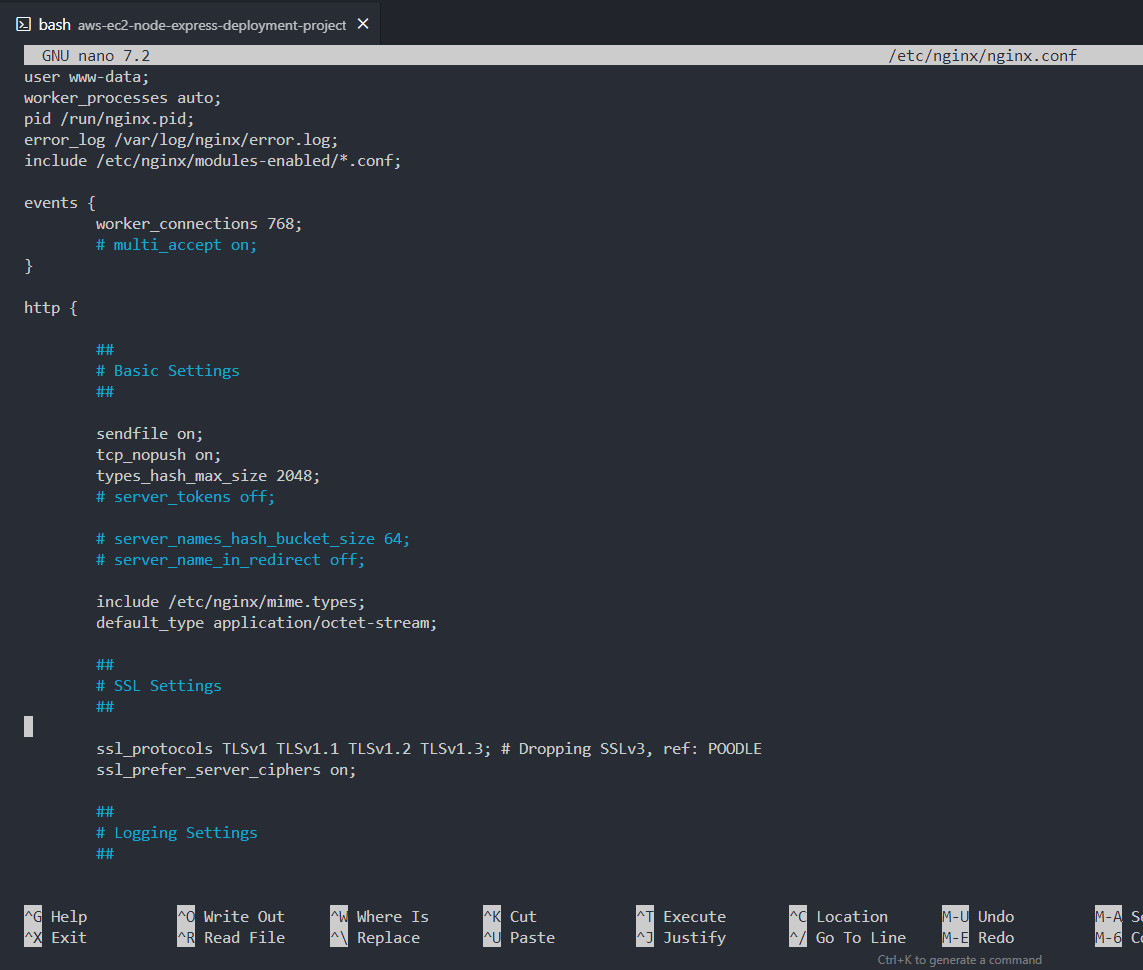
- First thing, scroll(if you have a limited screen) and locate the line with this text - "include /etc/nginx/sites-enabled/*;", then add a hash tag in front of the line to comment it out.
I.e.
- Secondly, add the snippet below just after that line.
The above snippet does two things.
- It prepares our Nginx setup, to help us with getting a free SSL certificate for our domain or subdomain("api.tutorials.zedlabs.xyz" in my case).
- It handles reverse-proxying our http traffic to port 8000.
With some proper spacing arrangements, your Nginx config additions should look like this:
-
Save and exit Nano - CTRL + o then press Enter then CTRL + x
-
Refresh/Reload the system service manager - run the below commands.
then
- Restart the Nginx service.
Now let's restart our API server and visit the VM IP directly(without the port number), you'll see that instead of the Nginx home-screen that was initially showing due to Nginx intercepting our http traffic, we'll now be automatically re-directed to our API server.
That will simply mean Nginx is now serving as our reverse proxy.
- Restart the API server.
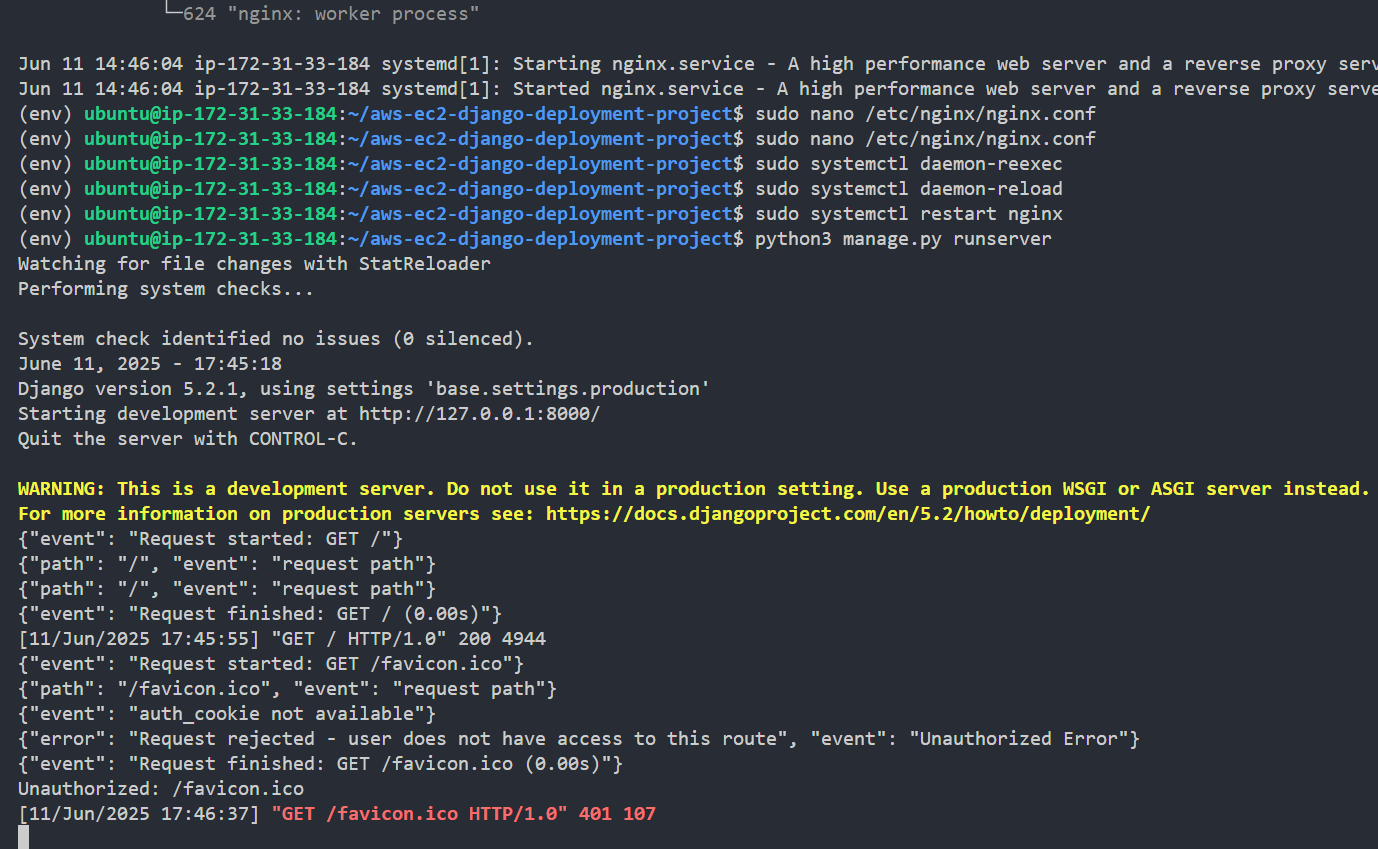
- Visit the IP address - directly without the port. I.e. http://13.60.96.165 in my case.
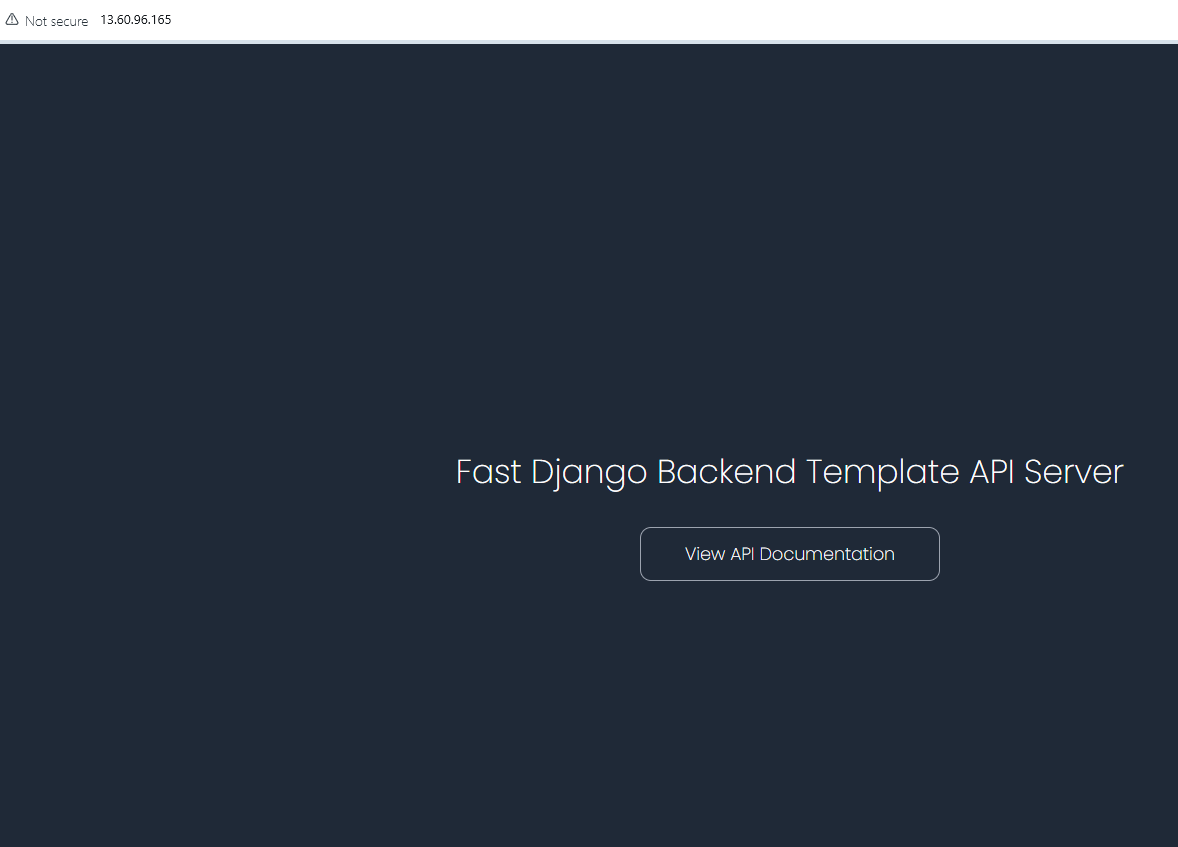
Just as stated, our reverse proxying is now working perfectly.
7. Get a free SSL certificate for project domain(sub-domain).
As stated earlier, we already prepared Nginx to help us get a free SSL certificate for our domain/sub-domain(api.tutorials.zedlabs.xyz) - thanks to Let's Encrypt.
In simple terms:
An SSL certificate is a digital file that:
- Encrypts data between a browser and server (HTTPS).
- Proves the website is real (identity verification).
- Uses a public-private key pair.
In a summary(and for what we want), it turns "http://" into "https://" - providing secure connection for http.
Before we proceed to get our SSL certificate, let's point our VM IP to our domain so that we can receive traffic on it instead of using our VM IP address. Nginx will fail to provide the SSL certificate if that is not done first.
To do that, simply go to where ever your domain is hosted, and create an "A" DNS record that points your domain/sub-domain to the VM IP address.
My domain is currently hosted on AWS Route 53.
Route 53 is AWS' DNS management service.
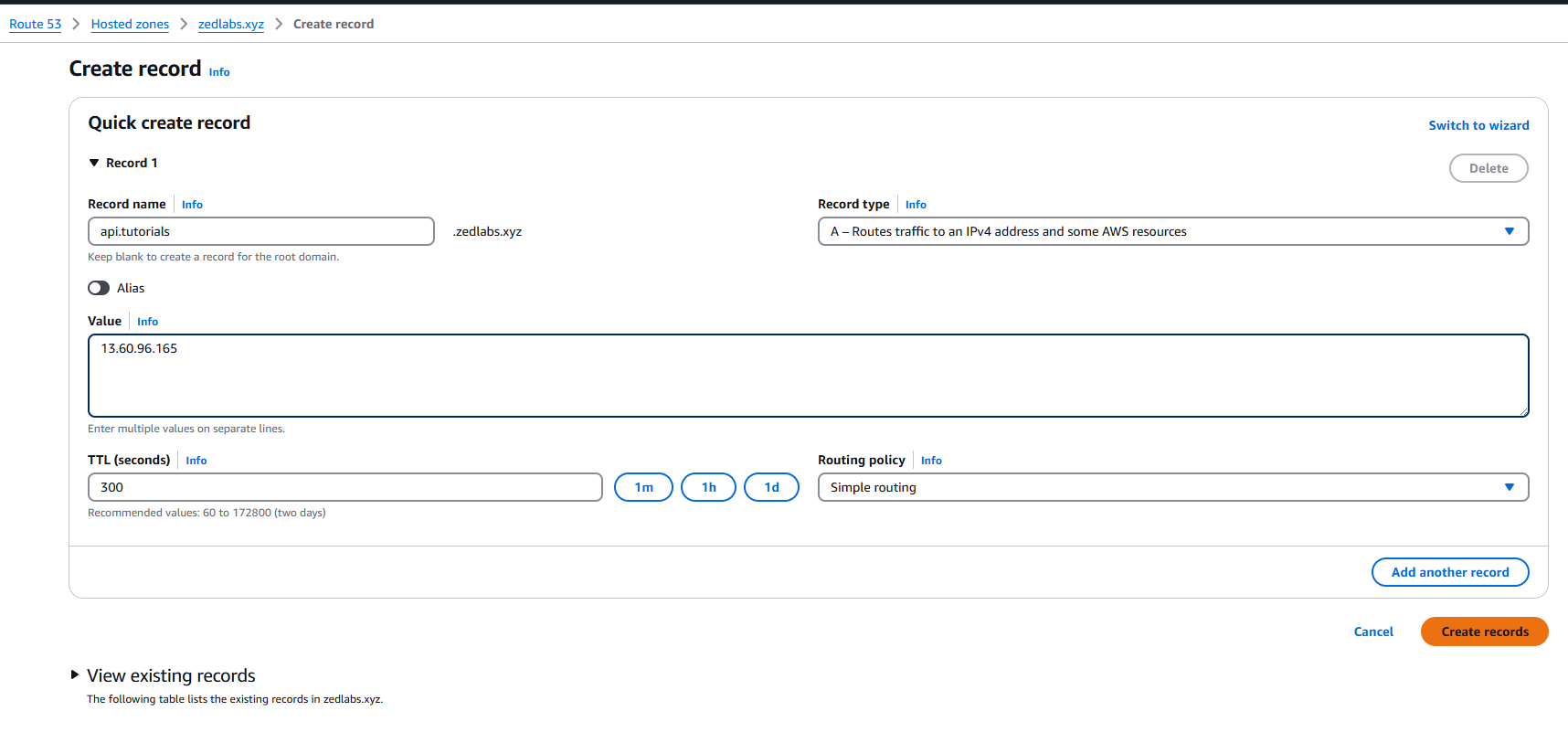
Now stop the API server, and let's get on SSL certificate for our sub-domain.
-
CTRL + c
-
Run the below commands
You'll get the below prompt about disk space usage, type "Y" to agree.
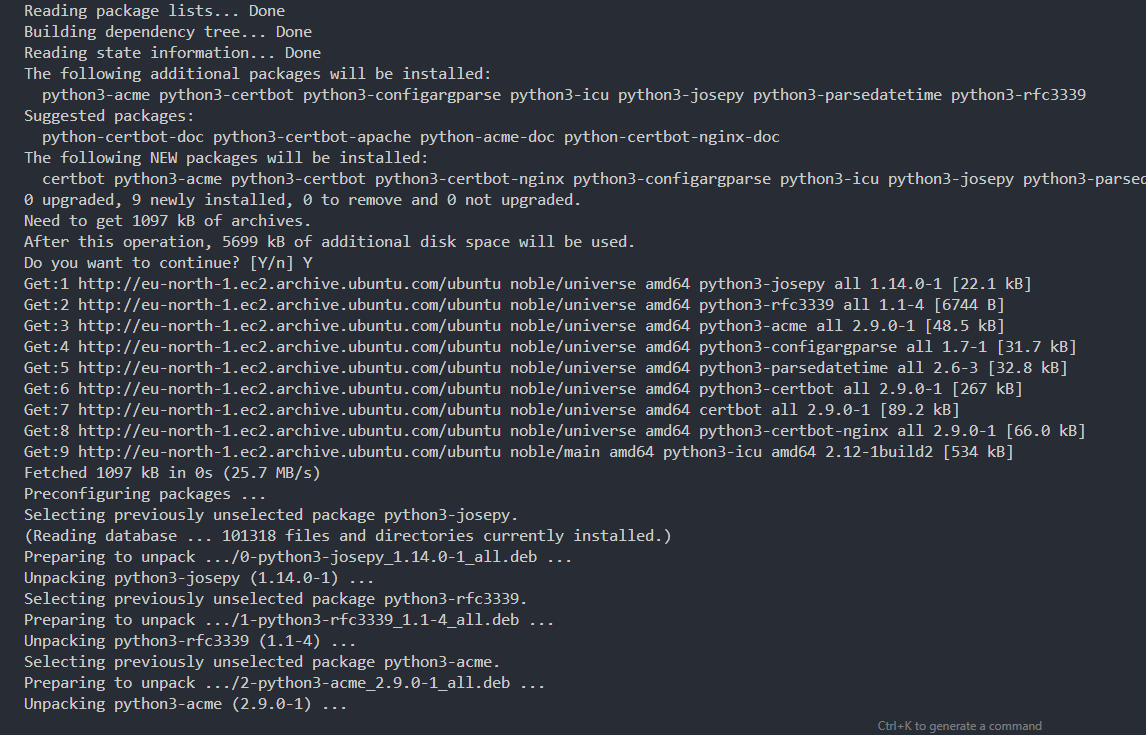
Now run:
In my case, that would be:
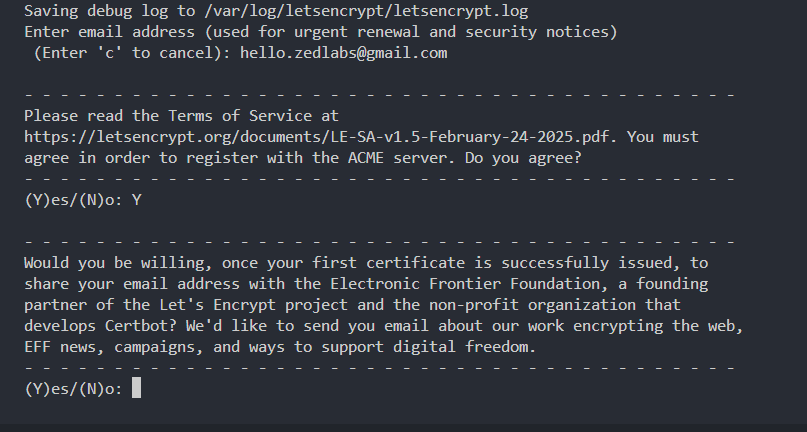
You'll be prompted to add an email address, proceed to add one.
You'll get another prompt asking you to read and agree to the Let's Encrypt terms. Read and agree by typing a "Y".
One more email marketing-related prompt, Type "Y" to agree.
You should then see a success message that looks similar to the one below.
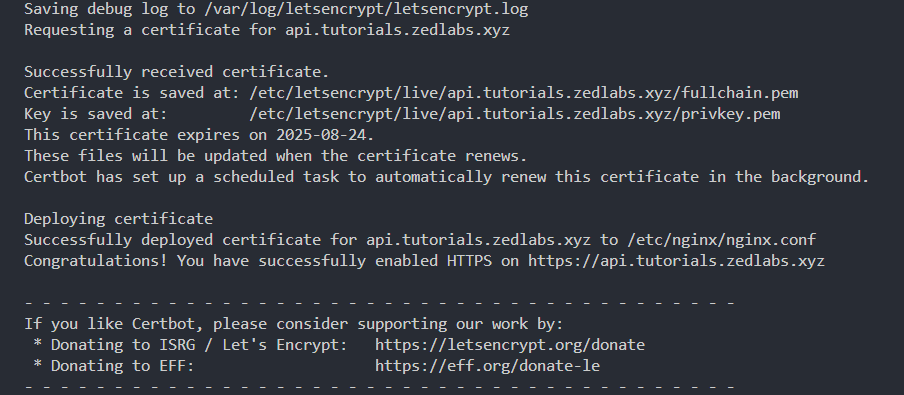
Congratulation!!! You just successfully got a free SSL certificate for your domain/sub-domain.
8. Test the API server on the now SSL certified domain/sub-domain.
- Refresh/Reload the system service manager - run the below commands.
then
- Restart the Nginx service.
- Check the Nginx service status.
- Restart the API server server
Once again, ensure to be inside of the project(the git repo - "aws-ec2-django-deployment-project") directory before trying to restart the API server else you'll get an error.
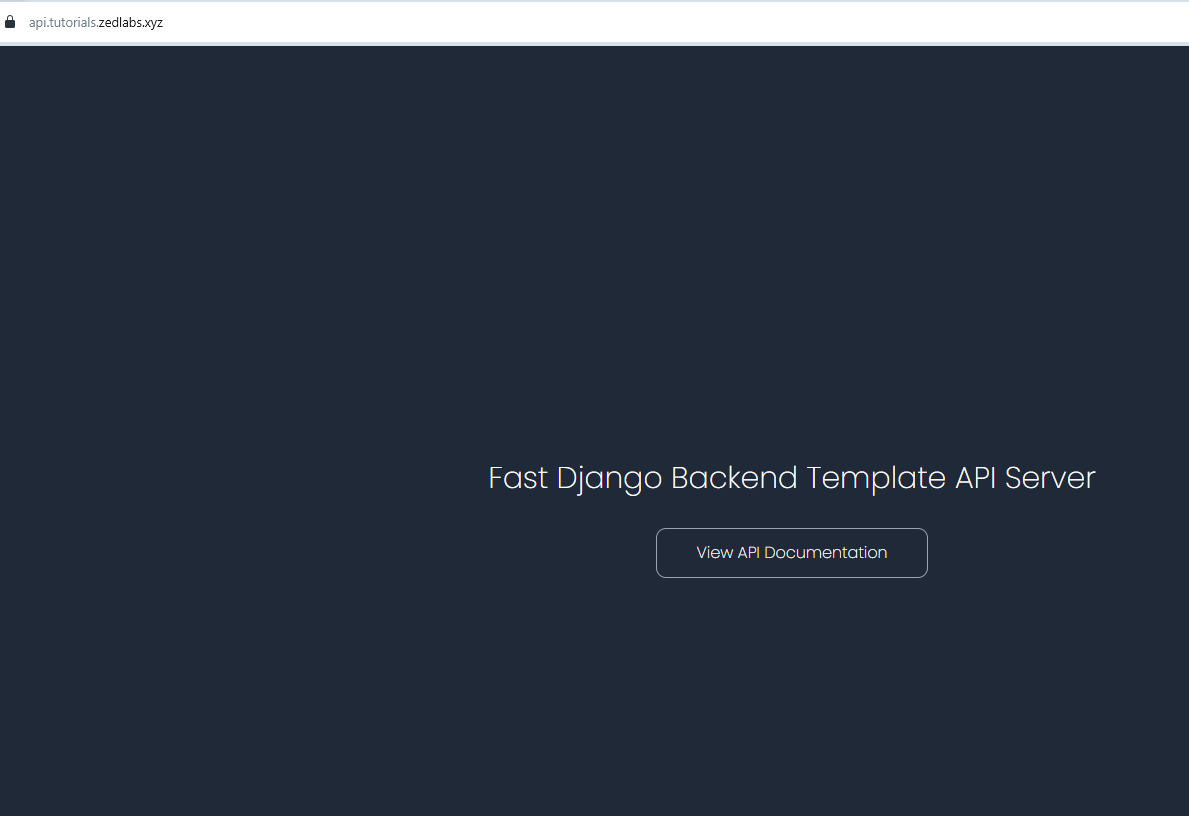
Now return to your browser, and try out an "https" connection with you domain/sub-domain. It should work just perfectly as mine below.
9. Install Docker.
So far, we're doing great. Up next, let's install Docker on our EC2 VM.
-
Stop the API server - CTRL + c
-
Set up Docker's apt repository(simply copy and paste the whole command at once).
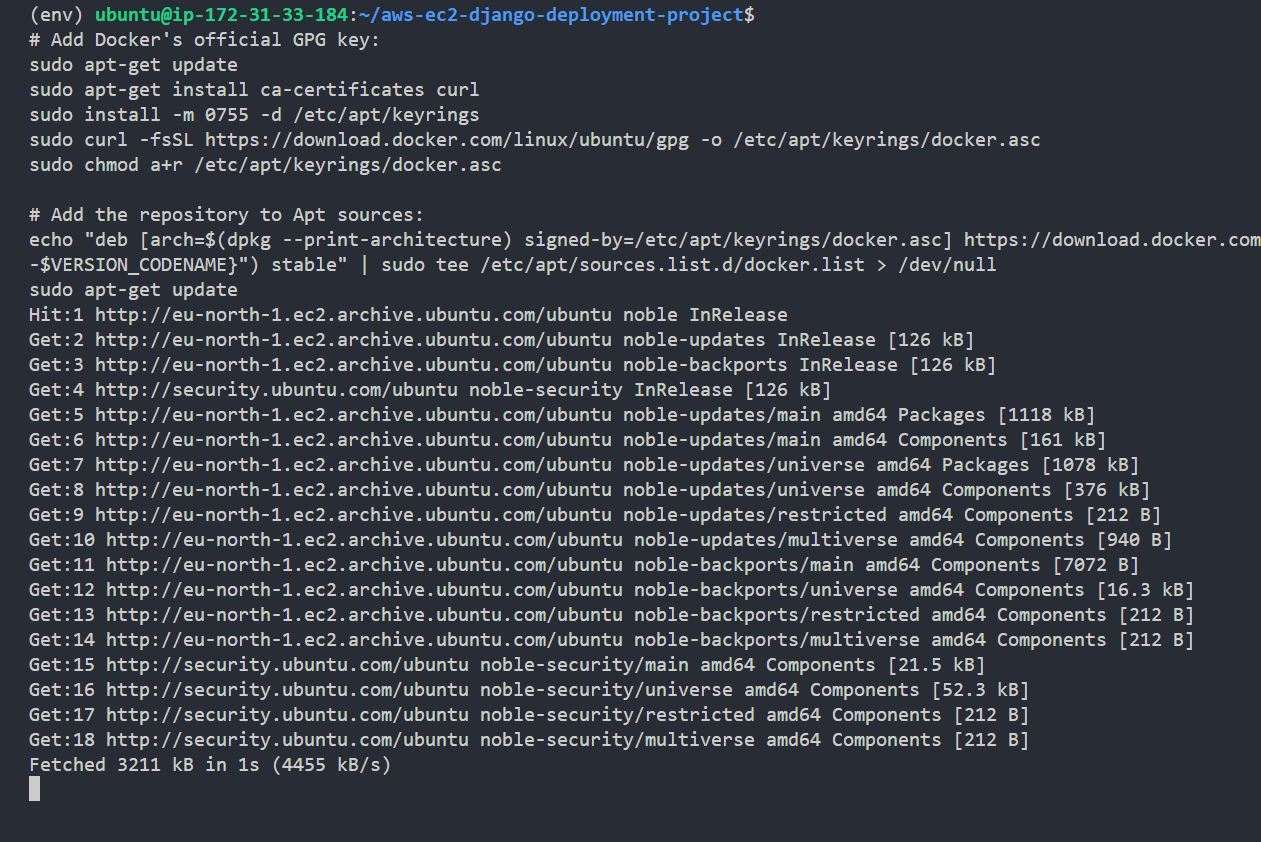
- Install Docker packages(hence the latest Docker version).
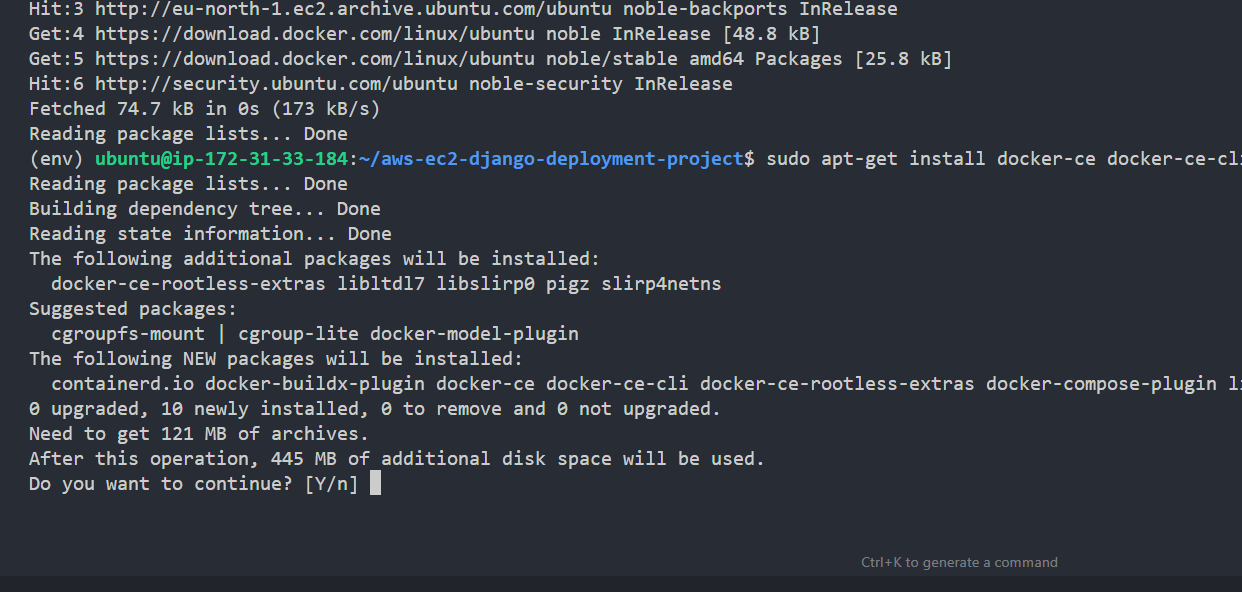
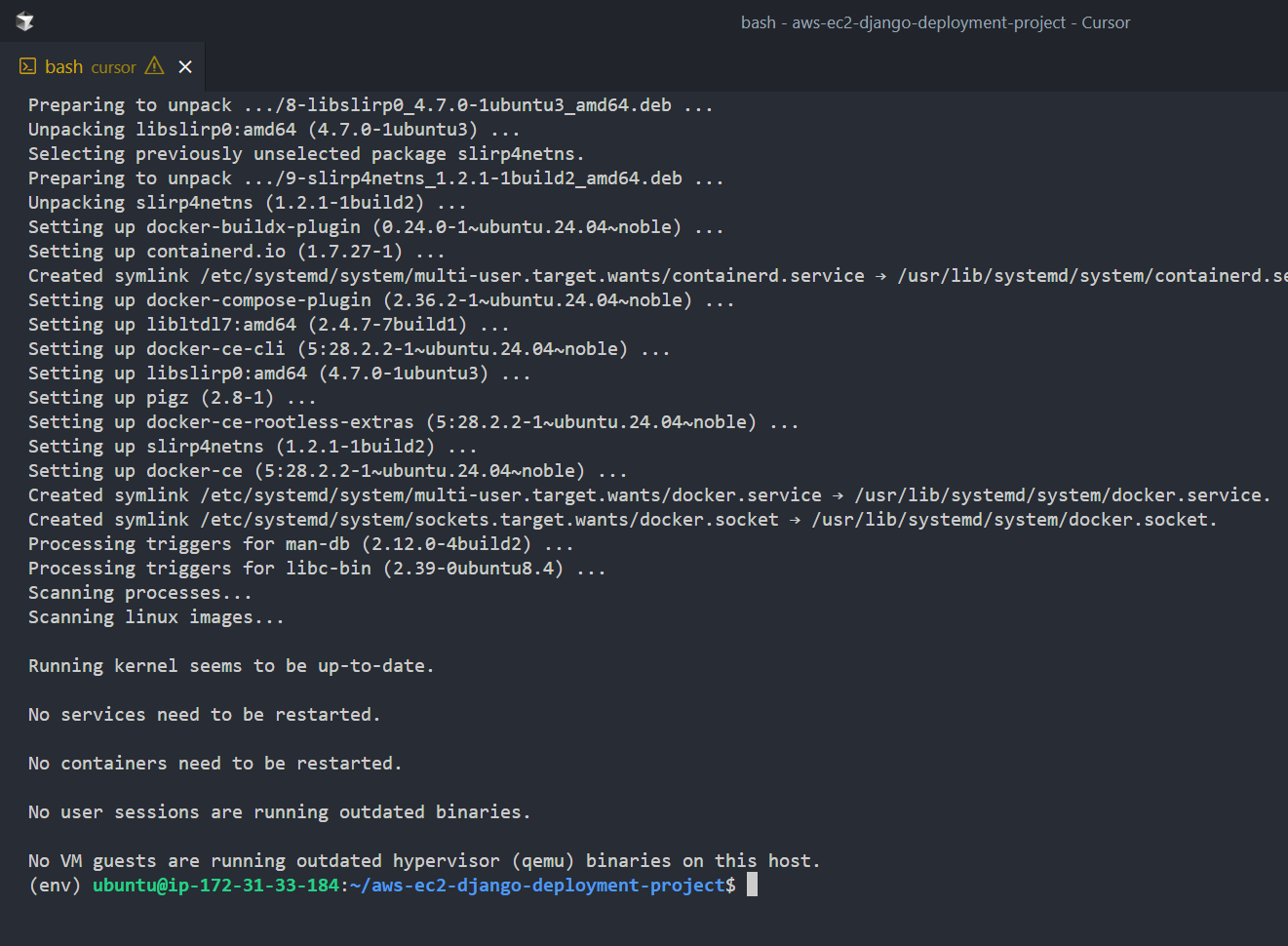
- Verify that the installation was successfully - run a hello-world image.
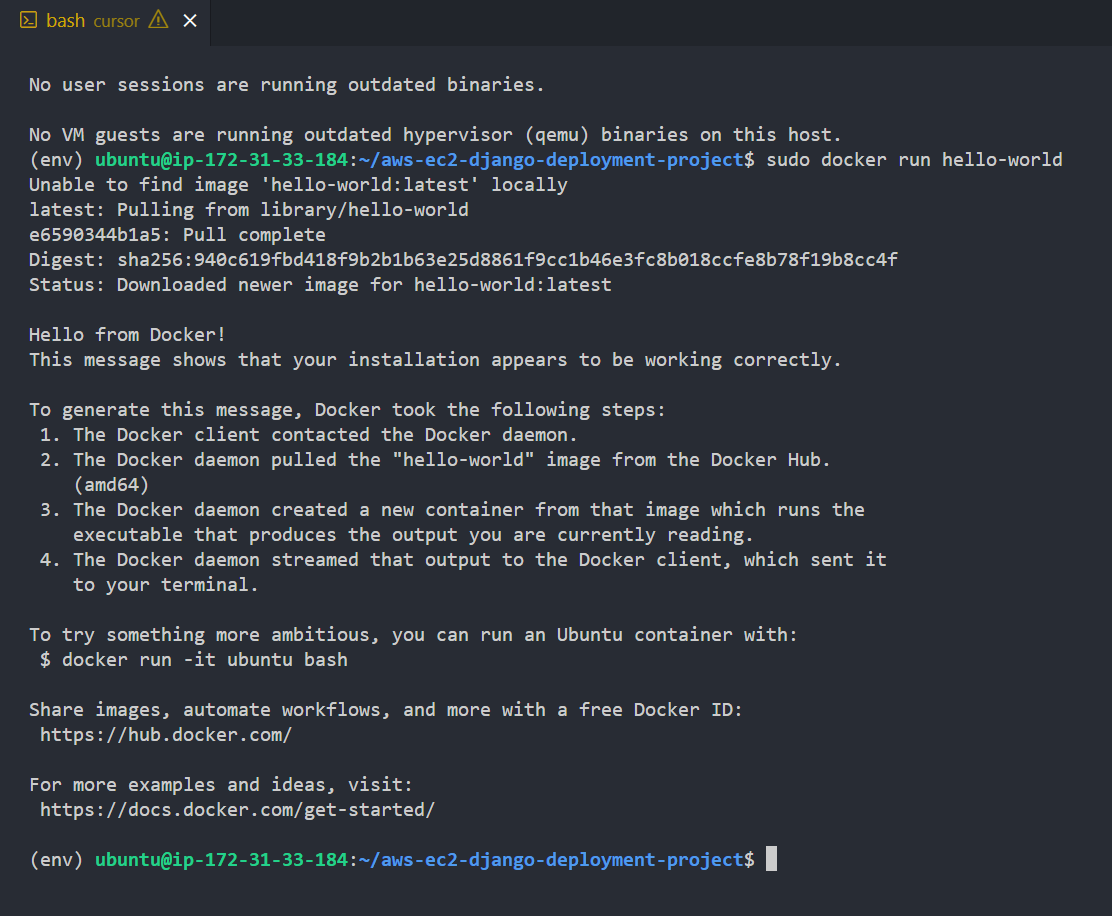
- View list of available Docker images.

We can see that Docker was successfully installed on the VM, and everything is going great.
10. Explain the available Docker deployment options(step 2, 3, 4, and 8 were not really necessary).
Now with Docker installed, we'll need to build our project into a Docker image and handle the deployment.
There are basically two ways we can provision a Docker image for this deployment.
- We could simply pull an already built image from a container registry like Docker hub, and run a container( which makes steps 2, 3, 4, and 8 all unnecessary). This method will certainly be a lot easier and faster, hence should be the one you should opt for, when making containerized cloud deployments.
- We pull in our project files from Github or any source code management(SCM) platform you're using, and build the image manually on the VM, then deploy it as a container.
For this tutorial, we'll stick with the second option.
11. Prepare the project's Docker image(build image on the VM using the available Dockerfile).
As can be seen in the project files we pulled from Github, we'll find an already prepared Dockerfile. Now all we have to do, is to build the project image, and run a container.
P.S: The project README file contains a lot of information that will be very helpful in handling Docker deployments.
- View project Dockerfile to verify.
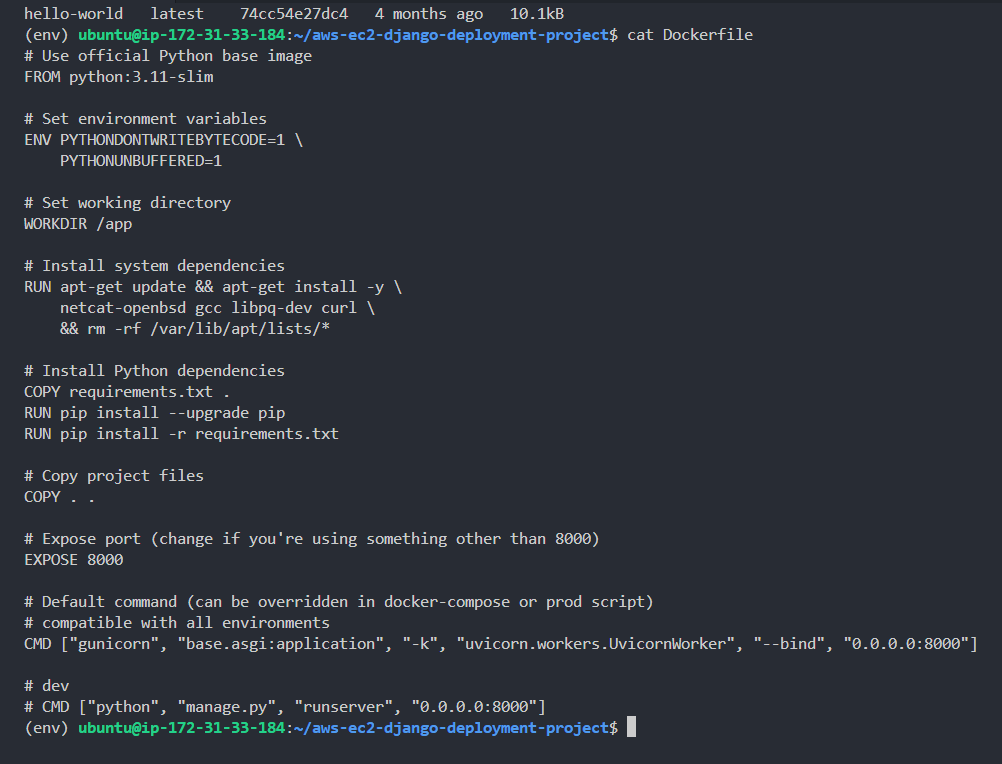
- Prepare/Build Docker image.
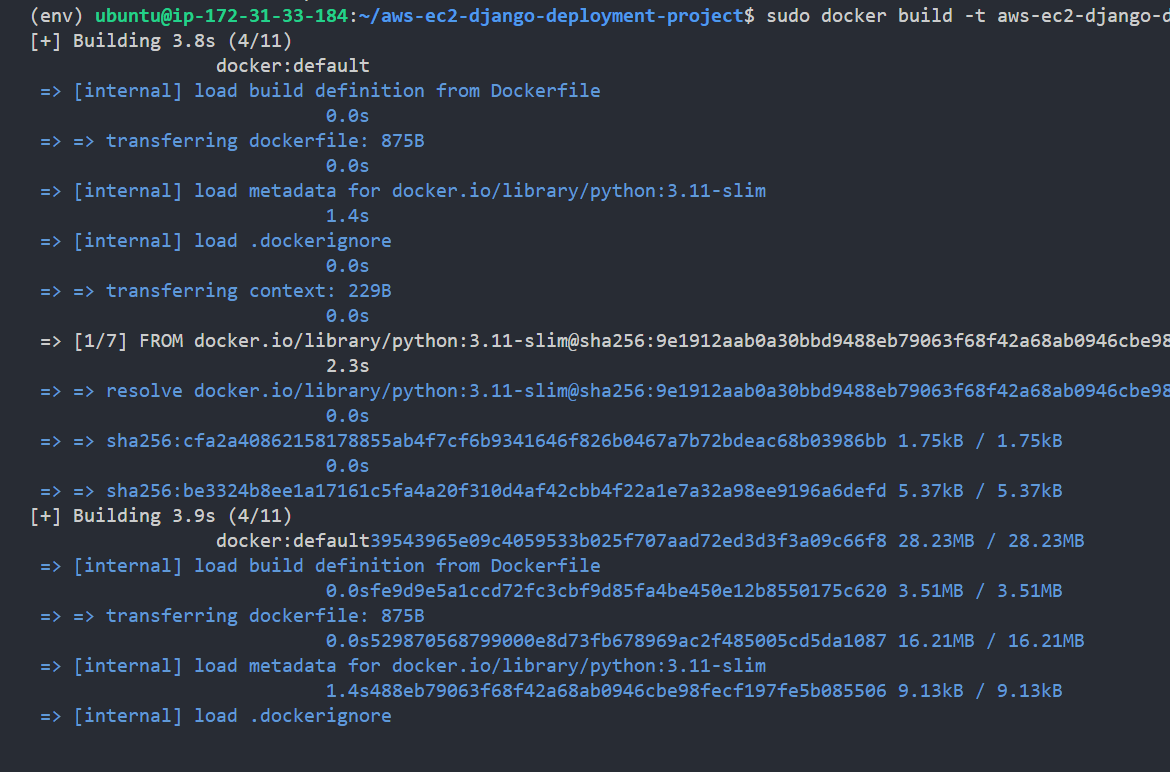
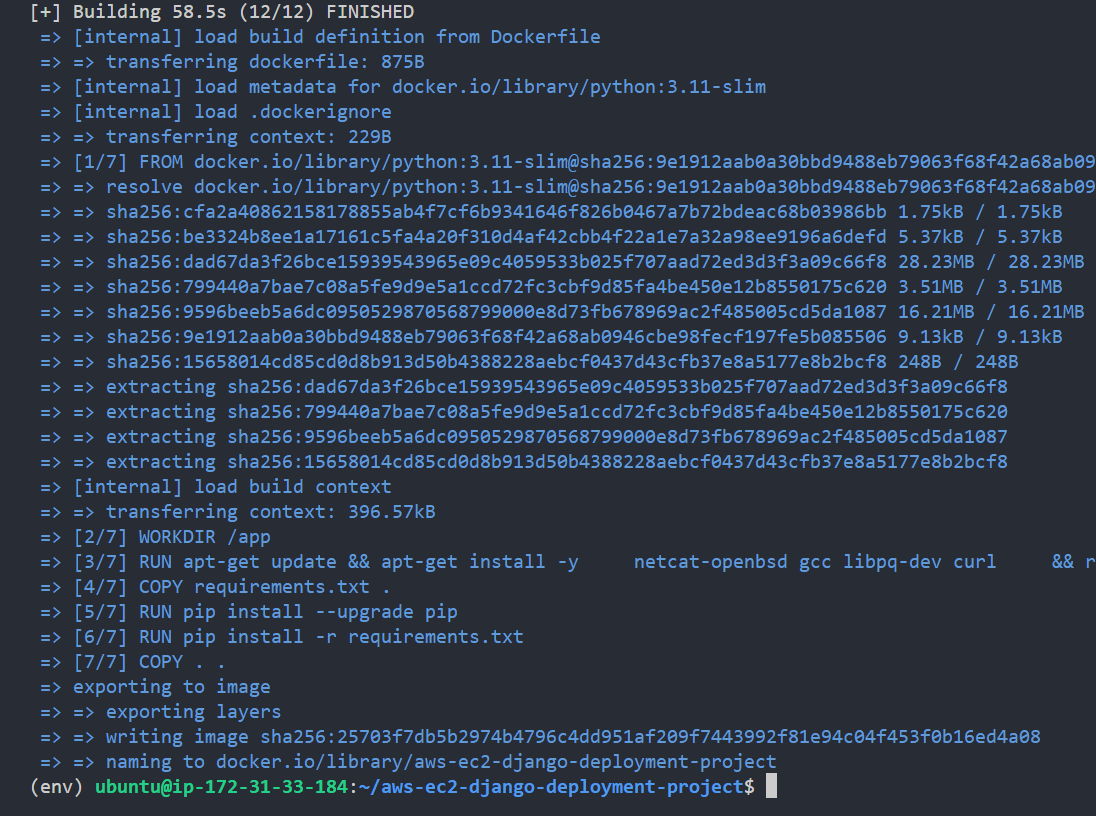
12. Manually run the API server with Docker.
As we can see in both screenshots above, the build was successfully.
Now, let's first run the Docker image manually, to ensure everything is working great, before proceeding to setup a system service to handle persistence.
Below is a summary of what the above command does.
-
docker run: Starts a new Docker container based on a specified image.
-
-d (detached mode): Runs the container in the background, so your terminal isn’t blocked by its output.
-
-p 8000:8000: Maps port 8000 on the host (e.g., your EC2 server) to port 8000 in the container, making the Django app accessible at http://your-server-ip:8000 - which we have already setup with Nginx serving as a reverse proxy.
-
--env-file .env: Loads environment variables from a local .env file and injects them into the container.
-
--name aws-ec2-django-deployment-project__container: Assigns a custom name to the container.
-
aws-ec2-django-deployment-project: The name of the Docker image we're launching the container from, which we already built earlier.
Now let's view the container logs to make sure everything is okay.
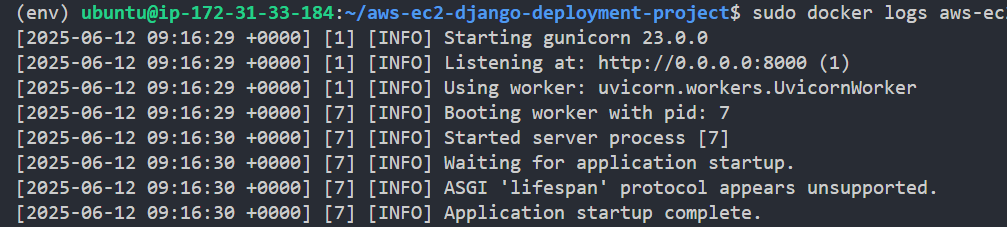
As you can see, everything is going great.
On testing the API server via the server IP and on the provided custom domain, you can see that everything is working fine with out Docker deployment.
Try stopping the running container, then visit the live API URL again, you'll get a 502 Bad Gateway error from Nginx.
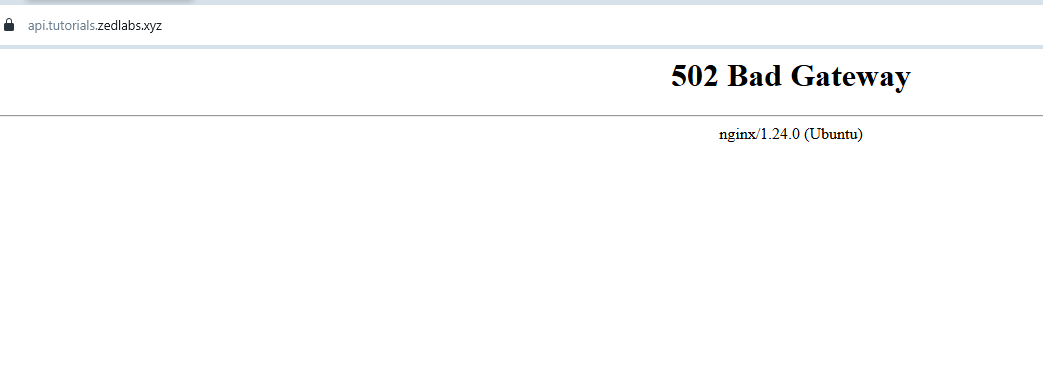
Restart manually whenever you wish(You actually don't need to - we'll handle that in the next few steps).
13. Explaining what happens with the current setup if something goes wrong.
With the current setup we have, while our containerized API server deployment can keep running since the VM will always be up, what happens if a breaking-error occurs on it. What happens if something terrible goes wrong.
If any such issues come up, our API server will simply crash with no system in place to restart it.
That is where a tool like Systemd comes in handy once again. If we were making a Javascript/NodeJs deployment, an alternative tool we could use is PM2. Systemd remains the mode robust option either way.
We'll now simply create a system service to ensure that our dockerized API server is always up.
14. Create a system service to run the project/API server - along with a standard environmental variables file. Follow-up, and delete the previously created environmental variables file.
- Run the below command to initialize the creation of the system service using Nano.
- Add the following into the Editor.
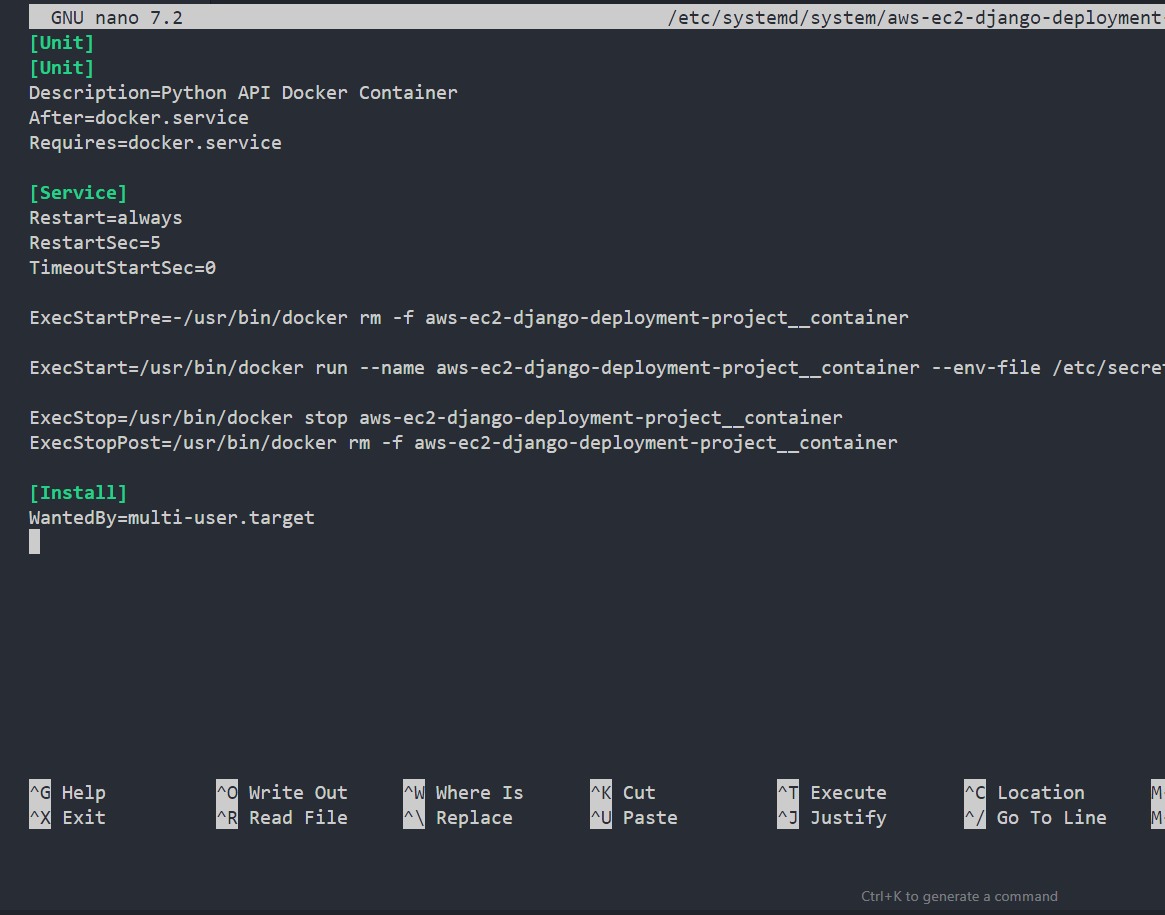
- Save and exit Nano - CTRL + o then press Enter then CTRL + x.
The above Systemd service file defines how to run a Python API Docker container as a persistent background service on Linux. Below is a concise breakdown:
[Unit] section:
-
Description: Describes the service — in this case, a Dockerized Python API server.
-
After=docker.service: Ensures this service starts only after Docker is up and running.
-
Requires=docker.service: Declares Docker as a hard dependency — if Docker stops, this service does too.
[Service] section:
-
Restart=always: Ensures the container auto-restarts if it crashes or stops unexpectedly.
-
RestartSec=5: Waits 5 seconds before trying to restart the container.
-
TimeoutStartSec=0: Allows the container to start immediately with no timeout delay.
-
ExecStartPre: Removes any existing container with the same name (aws-ec2-django-deployment-project__container) to avoid naming conflicts.
-
ExecStart: Runs the Docker container using:
- The specified image (aws-ec2-django-deployment-project).
- Port binding (-p 8000:8000) to expose it.
- A .env file to inject environment variables from.
-
ExecStop: Stops the running container cleanly on shutdown.
-
ExecStopPost: Removes the stopped container to ensure a fresh state on the next start.
[Install] section:
- WantedBy=multi-user.target: Enables the service to start automatically at boot in non-GUI server environments.
In short: This file tells systemd how to run, restart, and manage your Docker-based Python API server deployment as a reliable, self-healing background service.
15. Finish deployment, and test API server on the live URL - inside Postman.
Now that we have our system service all set, let's create the environmental variables file that will work on the service. As seen in the service file content, our environmental variables will be at "/etc/secrets.env".
Keeping our environmental variables off the project root, provides better security for valuable project credentials. Feel free to add the .env file to any location you feel will be most secure.
- Open the file with Nano.
-
Add all the original ".env" file content into it - just like you did for the previous one we created.
-
Save and exit Nano - CTRL + o then press Enter then CTRL + x
-
Now let's delete the initial env file we created(ensure to be on the project root - inside the repo).
- Ensure that the deletion was successful.

You should see that the file no longer exist - as in the screenshot below.
- Refresh/Reload the system service manager - run the below commands.
then
- Enable the API server system service.
- Start the service.
- Check the service status.
As can be seen in the system service log below, your containerized Python API server is now successfully running as a system service - using Docker.
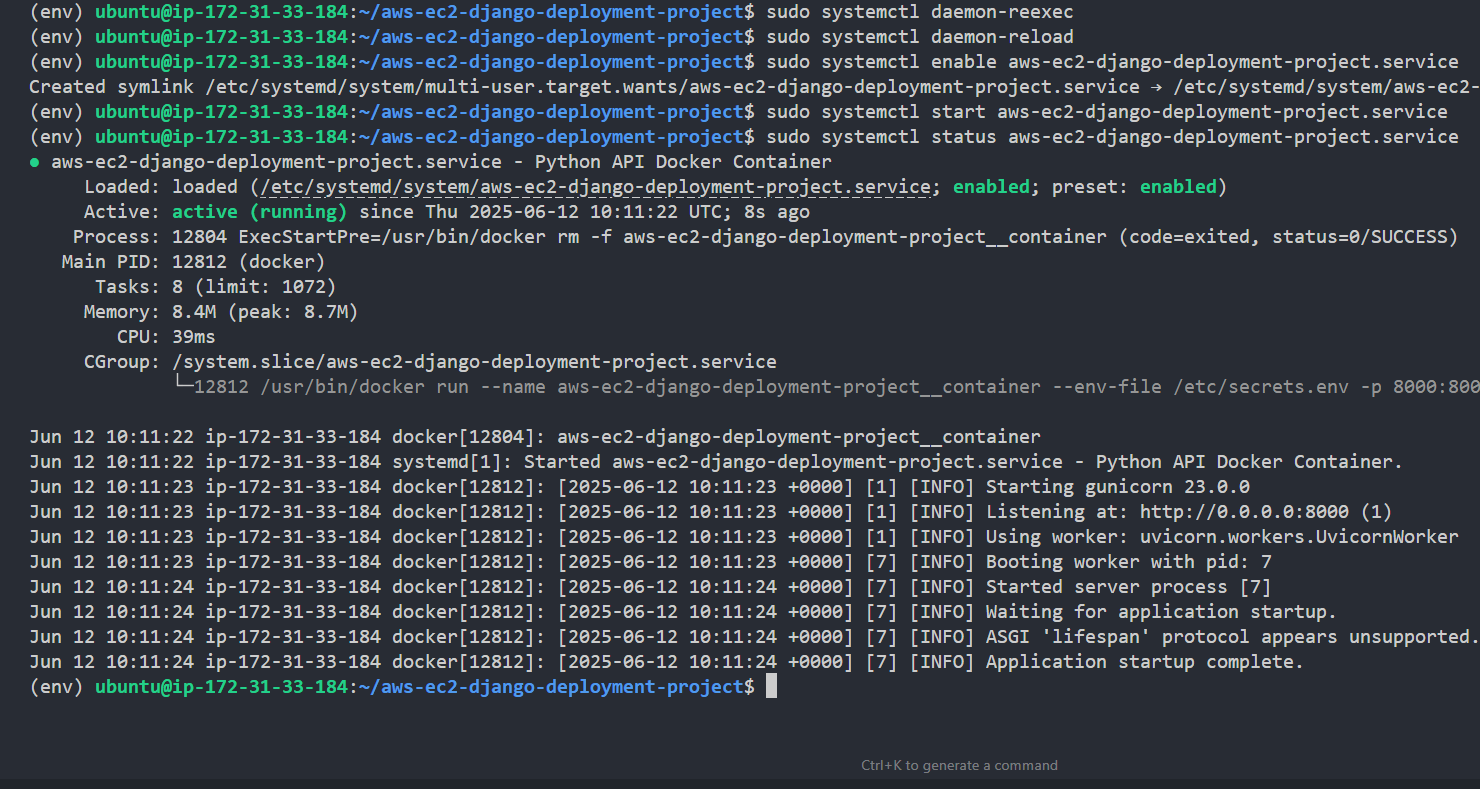
Our API should also be responding perfectly.
With this, whenever something goes wrong, the service will attempt to restart the API server without needing any manual intervention.
- View the API server system service logs whenever you need to.
Or
Now let's proceed to postman, and test the API end-points with the live URL.
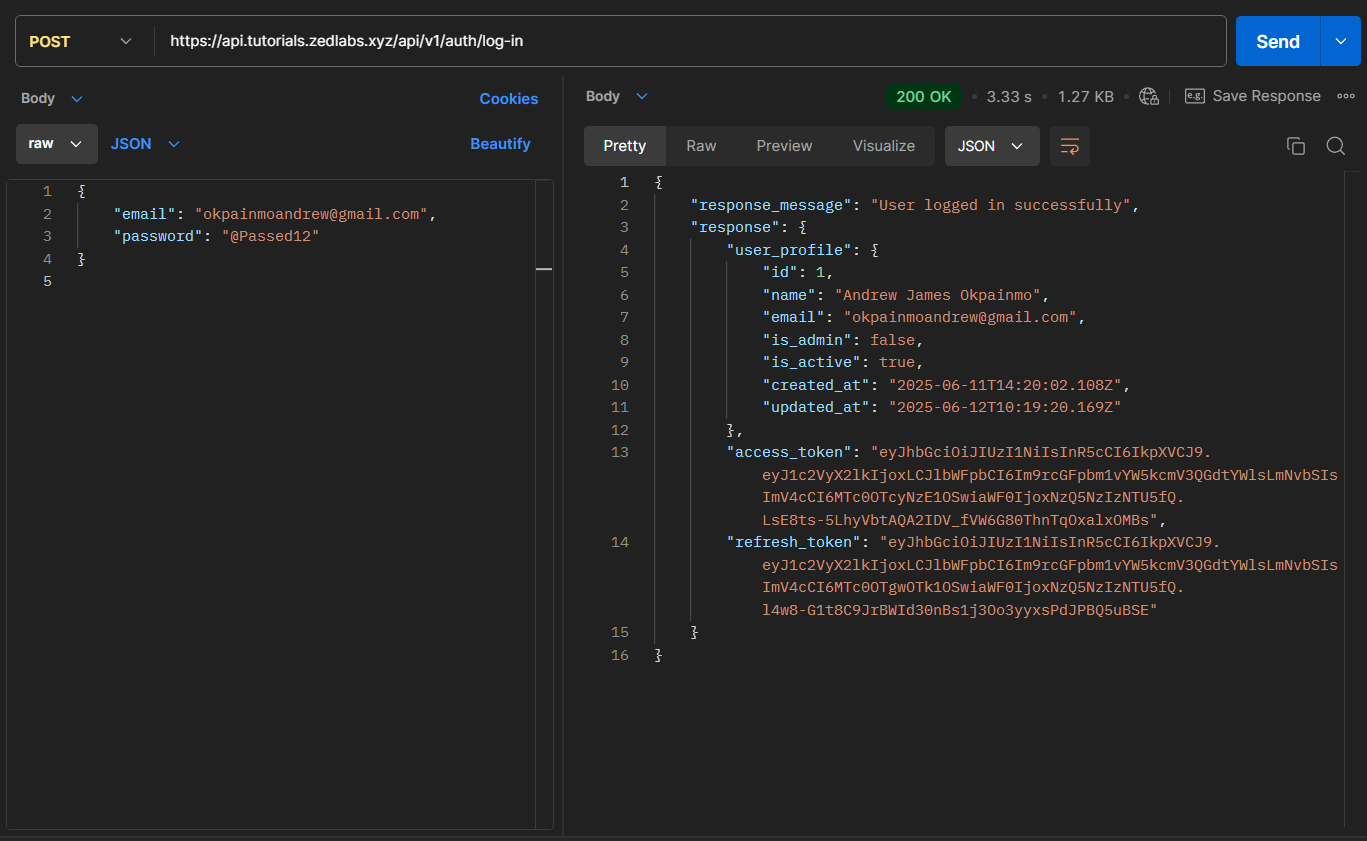
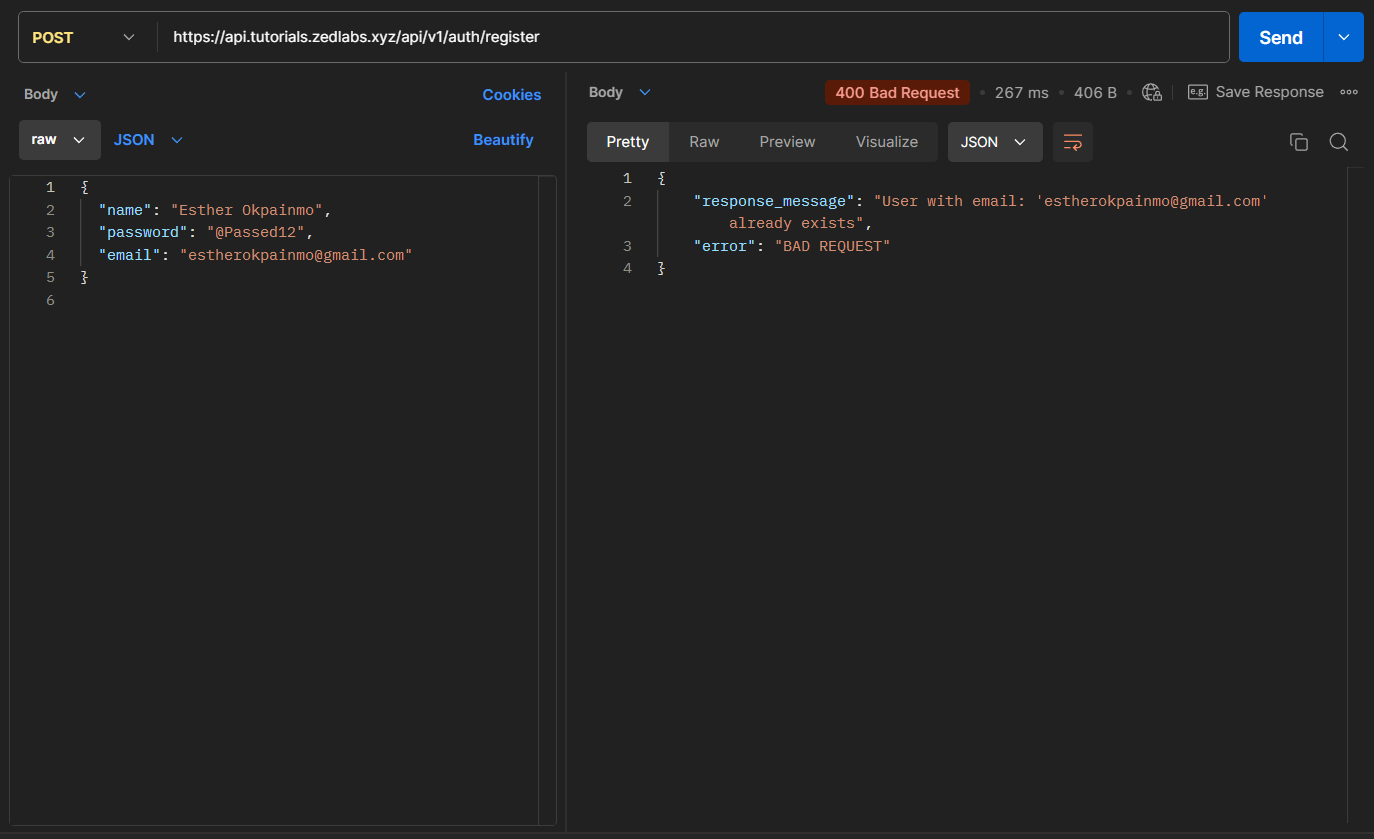
It all works perfectly!!!
And with that, you just successfully executed a highly professional containerized Python API server deployment on AWS EC2 - using Docker.
The limitation of this kind of cloud deployment.
While this API server deployment is honestly a feat on it's own, it is still quite limited, and cannot meet the needs of a very professional engineering team that has a high-output rate, and needs really efficient processes/systems.
With this current implementation, on every code/deployment update made to the project repository, the engineer in-charge still needs to:
- log into the EC2 instance, to pull in the code updates.
- Re-build the project Docker image.
- Restart the system service.
- Also view it's status to be sure it's okay.
- As I'll recommend, also restart Nginx.
- And also view it's status to be sure it's okay.
All of these processes, are not ideal and can be really tedious for engineers.
What if the engineer in charge is not available. That simply means all the code/feature deployments will remain on hold till he or she returns.
The solution to this bottleneck, is to simply implement proper CI/CD pipelines that can automate code integrations and deployments without any manual human intervention.
All of that and more will be covered later in a subsequent series, that will teach how to set up complete CI/CD pipelines with Jenkins and Github.
You sure don't want to miss those articles.
Conclusion.
That would be it for this article.
It's been quite a lot in this guide, I do hope you found much value.
Thanks for reading, see you in the next couple of smashing cloud engineering and DevOps articles.
If you loved this post and would want to send an appreciation, simply use this link to buy me a cup of coffee.
Cheers!!!
